The Ultimate Step-by-Step Guide to Migrate from Sitecore to WordPress
Learn how to seamlessly migrate from Sitecore to WordPress with our comprehensive step-by-step migration guide
Table of Contents
Okay, you’re thinking about migrating from Sitecore to WordPress.
Maybe your Sitecore license renewal is coming up, and you're questioning whether another year of six-figure fees makes sense. Maybe your content team is tired of waiting on developers for simple changes. Or maybe you've realized you're paying for enterprise features you barely use.
Whatever brought you here, you're in the right place.
But let's be honest about something upfront: this isn't a simple platform swap. Your Sitecore implementation has years of customizations, integrations, and workflows baked in. Your production environment runs on legacy content models, undocumented business rules, and that "temporary" integration your predecessor built three years ago. None of that shows up in vendor demos.
The gap between "it works in the demo" and "it works in production" is where migrations fail, budgets explode, and platforms get blamed for implementation decisions.
This guide gives you practical frameworks to plan a migration that still makes sense six months after launch—not just on day one. Drawing on 300+ enterprise migrations, we'll help you navigate the real challenges: hidden costs that surface mid-project, complexity factors that double timelines, and the critical decisions that determine whether you're set up for long-term success or expensive do-overs.
Here’s a quick roadmap to help you navigate this guide and get straight to the answers you’re looking for:
- Start here if you need to validate whether WordPress is actually the right fit for your organization.
- Start here for a deep dive into the ROl and cost comparison between WordPress and Sitecore.
- Start here if you want to address common objections people often have about Sitecore to WordPress migration.
- Start here for a DIY step-by-step guide on how to handle the migration yourself.
- Start here if you have specific questions about your unique migration needs.
- Start here to download this guide as a PDF-perfect for your next flight or to share with your team.
- Or skip all of that and book a free 30-minute call with us. Let's cut to the chase and tackle your questions head-on.
Ready? Let's start by making sure this migration actually makes sense for your business.
PART 1: SHOULD YOU REALLY MIGRATE? THE DECISION FRAMEWORK
Before you commit to a multi-month, six-figure migration project, let's pressure-test the decision. Not every Sitecore frustration means WordPress is the answer. This framework helps you validate whether migration makes strategic sense for your specific situation.
1.1 The 6 Critical Questions
Answer these honestly. If you're unsure about more than two, you need more discovery before moving forward.
Question 1: How many people manage content daily?
- 1-5 editors → WordPress or headless CMS make sense. Sitecore's complexity is overkill.
- 6-20 editors → Any platform could work, but governance and workflow matter more than the platform itself.
- 20+ editors across departments → WordPress excels here with multisite, role management, and editorial workflows. Sitecore's advantages diminish at this scale unless you're heavily invested in its personalization engine.
Question 2: What content types do you mainly publish?
- Marketing pages and campaigns → WordPress dominates. Faster deployment, easier A/B testing, better integration with marketing tools.
- News, articles, and editorial content → WordPress was built for this. The Gutenberg editor makes Sitecore's page builder feel clunky.
- Complex product catalogs with frequent updates → Both can handle it, but WordPress with WooCommerce or custom post types offers more flexibility at lower cost.
- Highly personalized, multi-channel campaigns → If you're actively using Sitecore's personalization engine and have the team to maintain it, this is one area where Sitecore's premium might be justified.
Question 3: What systems must integrate seamlessly?
- CRM only (Salesforce, HubSpot) → Both platforms handle this easily. WordPress often integrates faster.
- Marketing automation, analytics, PIM, DAM → WordPress has mature integrations for all of these. Sitecore's native connectors aren't worth the license premium unless you're using 5+ Sitecore products together.
- Custom enterprise applications → WordPress's REST API makes custom integrations straightforward. If your Sitecore integrations are working well, factor in rebuild time and cost.
- Everything in the Microsoft ecosystem → If you're heavily Azure-based, Sitecore's Microsoft stack alignment might matter. Otherwise, WordPress integrates fine with Microsoft tools.
Question 4: What's your realistic total budget for year one?
- Under $150K → WordPress is your only realistic option. Sitecore licensing alone exceeds this.
- $150K-$400K → WordPress with enterprise hosting fits comfortably. Sitecore XM Cloud might fit technically but leaves little budget for implementation and contingency.
- $400K+ → All options are accessible, but question whether Sitecore's premium is delivering proportional value.
Question 5: When do you absolutely need to launch?
- Under 3 months → Only WordPress is achievable (with an experienced partner and limited scope).
- 3-6 months → WordPress is very doable. Sitecore to WordPress migration is realistic with proper planning.
- 6-12 months → Any migration path is achievable. Timeline isn't a constraint.
- 12+ months 6-12 months → Question why you're waiting. Unnecessary delays cost you in continued Sitecore licensing and delayed benefits.
Question 6: What technical capability exists in-house?
- No dedicated developers → WordPress with agency support is your path. Sitecore requires continuous .NET expertise you don't have.
- Front-end developers only → WordPress works well. Your team can handle most needs with plugins and light PHP.
- Full-stack team familiar with PHP → WordPress is a great fit. Your team can own the platform.
- Full-stack team with .NET expertise → If you're staying in the Microsoft ecosystem, this isn't a forcing factor either way. Evaluate on other criteria.
1.2 Interpreting Your Answers
Strong signals to migrate to WordPress:
- Small to mid-size content team (under 50 editors)
- Primary focus on publishing (articles, marketing content, product information)
- Budget under $400K for year one
- Need to launch within 6 months
- Limited or no .NET development capability
- Paying for Sitecore features you don't actively use
Warning patterns that suggest more discovery needed:
- You're primarily frustrated with your current implementation, not the platform. (Bad implementations look the same on any CMS.)
- You're not clear on what Sitecore features your team actually depends on.
- You haven't inventoried your current integrations and their complexity.
- You're planning to migrate "because WordPress is cheaper" without understanding total cost of ownership.
Situations where staying on Sitecore might make sense:
- You're actively using 5+ Sitecore products together (CDP, Personalize, Send, XM Cloud, Content Hub)
- Your personalization engine drives significant measurable revenue
- You're heavily invested in Microsoft's ecosystem and Azure infrastructure
- You have a strong in-house .NET team that knows Sitecore deeply
- Your Sitecore implementation is working well, and costs are acceptable
1.3 The Go/No-Go Decision Tree
Use this flowchart to make your final call:
Is your Sitecore license renewal coming up in the next 6 months?
- YES → Strong timing to evaluate alternatives
- NO → Less urgency, but evaluate if costs justify waiting
Are you using fewer than 50% of Sitecore's features?
- YES → You're likely overpaying significantly
- NO → Sitecore might be appropriate for your complexity
Is your content team frequently blocked waiting for developer assistance?
- YES → WordPress's self-service model will dramatically improve velocity
- NO → Implementation issue, not necessarily a platform issue
Do you have budget for both migration AND 12 months of WordPress hosting/support?
- YES → Proceed with migration planning
- NO → You'll be in trouble. Budget properly or wait.
Do you have an experienced WordPress VIP partner identified?
- YES → Risk is manageable
- NO → Finding the right partner is critical. Don't rush this.
Decision: If you answered YES to 4+ of these questions, migration makes strategic sense. If not, dig deeper before committing.
2. UNDERSTANDING YOUR MIGRATION COMPLEXITY
Migration timelines can swing 50-200% from initial estimates. That's not because teams can't plan—it's because migrations bring hidden issues to the surface. Legacy workarounds, undocumented decisions, and technical debt all reveal themselves when you try to move.
This section helps you understand what you're actually signing up for.
2.1 The Migration Complexity Scale
Every Sitecore to WordPress migration falls into one of three complexity levels. Your level determines timeline, budget, and the expertise you'll need.
Simple Migration (10-16 weeks, $100K-$250K)
Characteristics:
- Under 10,000 pages
- 3-5 main content types
- Straightforward content structure (mostly articles, pages, basic products)
- Limited custom Sitecore components (under 10 custom templates)
- Standard integrations (Google Analytics, basic CRM, email marketing)
- Single language
- Willing to simplify some legacy functionality rather than replicate exactly
What "simple" means: The systems share similar mental models. Most effort goes into moving content and lightly adapting it. You're not rebuilding complex features—you're finding WordPress equivalents for standard Sitecore functionality.
Example: A corporate marketing site with news, product pages, and lead forms. Content-heavy but functionally straightforward.
Moderate Migration (16-24 weeks, $250K-$500K)
Characteristics:
- 10,000-50,000 pages
- 5-10 content types with relationships between them
- Multiple subsites or brands
- Custom Sitecore workflows and approval chains
- 10-20 custom components requiring rebuild
- Multiple integrations (CRM, marketing automation, DAM, analytics)
- Multi-language (2-5 languages)
- E-commerce functionality
- Custom user roles and permissions
What "moderate" means: You're translating different ways of structuring content and rebuilding custom features. Some Sitecore concepts don't map directly to WordPress, requiring rethinking rather than replicating.
Example: A multi-brand publisher with complex editorial workflows, multiple author types, subscription management, and advertising systems.
High Complexity Migration (24-40 weeks, $500K-$1M+)
Characteristics:
- 50,000+ pages
- 10+ interconnected content types
- Heavy use of Sitecore personalization engine
- Extensive custom functionality (20+ custom components)
- Complex integration ecosystem (10+ systems)
- Multi-language (5+ languages) with regional variations
- Advanced e-commerce with custom checkout flows
- Complex user hierarchies and permissions
- Compliance requirements (HIPAA, GDPR, financial regulations)
- Real-time data synchronization needs
What "high complexity" means: This is effectively a new build. Architecture, code, and processes all change fundamentally. Almost nothing carries over directly—you're rebuilding the business logic on a different foundation.
Example: A global media conglomerate with multiple properties, regional variations, advanced personalization, subscription management, paywall systems, and advertising networks across properties.
2.2 The Reality Check: What Adds Time and Cost
These factors compound. If you have three of them, don't just add the percentages—expect them to interact and multiply.
Content Volume (+20-40% to timeline)
- Over 50,000 pages
- 100,000+ media assets
- Complex media structures (multiple image sizes, video variants, PDF libraries)
- Why it matters: Each piece of content needs validation. Automated migration tools handle bulk work, but edge cases, broken links, and malformed content require manual attention. At scale, edge cases become the norm.
Custom Sitecore Features (+30-60% to timeline)
- More than 15 custom Sitecore templates
- Heavy use of Sitecore placeholders and rendering parameters
- Custom Sitecore pipelines or processors
- Sitecore personalization rules in active use
- Why it matters: These don't have direct WordPress equivalents. Each one requires analysis, redesign, and custom development. The more customization, the less you benefit from WordPress's out-of-box capabilities.
Integration Complexity (+20-50% to timeline)
- More than 5 active integrations
- Real-time data synchronization (not just API calls)
- Custom-built integrations (not standard connectors)
- Integrations handling critical business processes
- Why it matters: Each integration needs rebuilding and testing. Real-time integrations require careful coordination to avoid data loss during cutover.
Organizational Complexity (+15-30% to timeline)
- More than 3 stakeholder groups requiring sign-off
- No dedicated product owner
- Content team unfamiliar with migration projects
- Distributed decision-making across departments
- Why it matters: Technical work proceeds at the speed of decision-making. Slow approvals, scope debates, and stakeholder alignment issues kill timelines more than technical challenges do.
Content Model Differences (+20-40% to timeline)
- Heavy use of Sitecore's hierarchical content tree for navigation
- Complex taxonomy structures with multiple layers
- Content reuse patterns that don't map to WordPress
- Extensive use of Sitecore's multivariate testing
- Why it matters: You're not just moving content—you're reconceptualizing how content is structured and relates. This requires careful planning and often multiple iterations to get right.
2.3 The 3 Hidden Costs That Wreck Budgets
These don't show up in initial scoping because vendors hope you won't ask. Every failed migration we've rescued had at least one of these.
Hidden Cost 1: Content Modeling and Retraining
What happens: Moving from Sitecore's page-based model to WordPress's post-types-and-taxonomies model changes how editors think, not just what buttons they press.
Real impact:
- Expect 40% productivity drop in month one as editors adjust
- 20% drop in month two as they build new habits
- 10% drop through month three as edge cases surface
Budget impact: 2-3 months of reduced content output. If you publish daily, you need temp resources or reduced publishing frequency during transition.
What it actually costs:
- Training: $15K-$40K for comprehensive role-based training
- Temporary productivity loss: Equivalent of 2-3 FTE months
- Documentation and resources: $10K-$20K for custom guides
- Total: $50K-$100K you probably didn't budget
Hidden Cost 2: SEO and Redirect Mapping
What vendors say: "We'll set up 301 redirects."
What actually happens: Your current site has years of SEO value built into URLs, metadata, and internal links. Finding everything that needs redirecting is harder than setting up the redirects.
What breaks:
- Old campaign pages still getting traffic from email campaigns
- PDF links hardcoded in external sites
- Forgotten microsites on subdomains
- Canonical tags pointing to old URLs
- Structured data markup with old URL patterns
- Internal search configurations
Real example: A media company migrated 50,000 articles with "all content preserved." They skipped comprehensive redirect mapping to save $30K. Traffic dropped 35% overnight. Recovery took 8 months and cost $180K in SEO remediation and content optimization.
What it actually costs:
- Comprehensive URL audit and mapping: $20K-$40K
- Redirect implementation and testing: $10K-$20K
- Post-launch monitoring and adjustments: $10K-$15K
- Total: $40K-$75K for proper execution
- Failure cost: $150K-$500K in lost traffic and emergency remediation
Hidden Cost 3: Asset Migration and DAM Integration
What vendors say: "We'll migrate your media library."
What "50,000 images" actually means:
- 12 different image formats and sizes
- Inconsistent naming conventions
- Duplicate versions scattered across folders
- Missing or incorrect metadata
- Hardcoded references throughout content
- Multiple image variants for responsive design
What modern platforms need:
- Structured asset taxonomy
- Proper metadata for search and filtering
- Responsive image variants with correct dimensions
- CDN integration with absolute paths
- Clean, usable organization structure
If you're going headless: Asset delivery changes fundamentally. WordPress's media library becomes an API endpoint. You might need Cloudinary or dedicated DAM integration. URL structures change. Image processing moves from server-side to client-side.
What it actually costs:
- Asset audit and cleanup: $15K-$30K
- Metadata normalization: $10K-$25K
- Integration with DAM/CDN: $20K-$40K
- Responsive variant generation: $10K-$20K
- Total: $55K-$115K when done properly
- Budget typically allocated: $10K-$20K for "media migration"
2.4 Migration Readiness Checklist
Before signing any migration contract, verify these prerequisites. Missing any item adds 20-40% to timeline and budget.
Strategic Readiness
- Clear business case with measurable success criteria
- Executive sponsorship with authority to make decisions
- Dedicated product owner (minimum 50% time allocation)
- Budget approved including 20% contingency
- Realistic timeline with runway before hard deadlines
Content Readiness
- Complete content inventory (all pages, posts, media assets)
- Content types identified and documented
- High-value content identified for priority migration
- Content quality assessment completed
- Decision made on what NOT to migrate
Technical Readiness
- Full Sitecore documentation (versions, customizations, integrations)
- Access to Sitecore backend for exports
- Current hosting environment documented
- Integration list with technical specifications
- Custom functionality documented with business requirements
Team Readiness
- Subject matter experts identified for each content type
- IT stakeholders engaged and supportive
- Training plan created with time allocated
- Internal champions identified for WordPress adoption
- Communication plan for stakeholders during migration
Risk Management
- Backup strategy tested and verified
- Rollback plan documented
- Content freeze plan and communication
- Contingency budget allocated (minimum 15-20%)
- Post-launch support plan in place
Partner Selection (if not DIY)
- Multiple vendors evaluated with references checked
- Sitecore-to-WordPress experience verified
- Team composition and continuity confirmed
- Methodology and approach clearly documented
- Post-launch support terms clearly defined
2.5 Timeline Reality Check
Here's what each complexity level actually takes when properly executed:
Simple Migration: 10-16 weeks
- Discovery and planning: 2 weeks
- Content model design: 1-2 weeks
- Development and configuration: 3-4 weeks
- Content migration and QA: 2-3 weeks
- Training and launch prep: 1-2 weeks
- Buffer for issues: 1-2 weeks
Moderate Migration: 16-24 weeks
- Discovery and planning: 3-4 weeks
- Content model and architecture: 2-3 weeks
- Development and custom features: 6-8 weeks
- Integration development: 2-3 weeks
- Content migration and QA: 3-4 weeks
- Training and launch prep: 2-3 weeks
- Buffer for issues: 2-3 weeks
High Complexity Migration: 24-40 weeks
- Discovery and deep planning: 4-6 weeks
- Architecture and content modeling: 3-4 weeks
- Development (phased): 10-16 weeks
- Integration development and testing: 4-6 weeks
- Content migration (phased): 4-6 weeks
- QA and validation: 3-4 weeks
- Training and launch prep: 3-4 weeks
- Buffer for issues: 3-6 weeks
Add 20-30% if:
- This is your first major CMS migration
- You have more than 5 stakeholder groups
- Decision-making typically takes more than 1 week
- Your team is unfamiliar with WordPress
Organizations that completed their checklist before signing contracts: 87% stayed within 10% of original timeline and budget.
Organizations that skipped pre-work: 68% exceeded timeline by 40%+ and budget by 30%+.
The checklist isn't bureaucracy. It's the difference between a successful migration and an expensive cautionary tale.
3. CHOOSING THE RIGHT MIGRATION PARTNER
Choosing the right migration partner is the 80% of migration success that has nothing to do with platforms. The best platform becomes a disaster with the wrong implementation team. A challenging migration succeeds with the right partner.
Here's how to separate genuine expertise from polished sales pitches.
3.1 Red Flags in Vendor Evaluation
These warning signs appear early—you just need to know what to watch for:
Warning Sign 1: Overly Polished Demos with Generic Data
What you see: Beautiful demo running on perfectly structured sample content What it means: They're showing you the happy path, not your messy reality What to do: Ask them to build a proof of concept using YOUR actual content structure and a complex content type from your Sitecore implementation. Watch how they work through your requirements. Do they ask smart questions or make assumptions?
Warning Sign 2: Vague Answers About Integration Complexity
What you hear: "We'll figure that out during discovery" or "Integrations are straightforward" What it means: They don't know, or they're sandbagging to keep the proposal price low What to do: Ask for ballpark estimates for each integration. Experienced partners can give you rough ranges even without full technical specs. If they won't provide estimates, they're either inexperienced or planning to hit you with change orders later.
Warning Sign 3: No Questions About Your Content Model
What happens: They jump straight to talking about WordPress features and plugins What it means: They're selling WordPress, not solving your problem What to do: Strong partners ask detailed questions about how your content is structured, how teams use it, what workflows exist, and what's working vs. broken in your current implementation. If they're not curious about your specific situation, walk away.
Warning Sign 4: Timeline Seems Too Good to Be True
What you hear: "We can have this done in 8 weeks" What it means: They're either wildly underestimating or planning a bare-minimum implementation that leaves you with problems later What to do: Compare against our complexity timelines (see Section 3). If their estimate is 40%+ faster than our ranges without a compelling explanation, be skeptical.
Warning Sign 5: Team Composition Is Unclear
What you hear: "We have a team of experts who will work on your project" What you need: Names, roles, specific people assigned What to do: Ask specifically: Who's the lead developer? Who's the project manager? Who handles content migration? Will these same people be with you post-launch? If they can't or won't tell you, it's because they assign teams only after contract signing, and you have no control over who you get.
3.2 Questions to Ask Every Vendor
Don't just listen to their pitch. Ask these specific questions and evaluate the quality of their answers:
About Experience:
- "How many Sitecore to WordPress migrations have you completed in the past 24 months?"
- Strong answer: Specific number (5+), with ability to provide references
- Weak answer: "We've done many enterprise migrations" (non-specific)
- "Can you walk me through a migration that went wrong and how you handled it?"
- Strong answer: Honest about a challenge, specific about the resolution and what they learned
- Weak answer: "Our migrations don't have problems" (dishonest) or can't recall one (inexperienced)
- "What's the most complex content model you've migrated, and what made it challenging?"
- Strong answer: Technical details about content relationships, taxonomy complexity, or integration challenges
- Weak answer: Vague description without technical specifics
About Methodology:
- "Walk me through your migration methodology step-by-step."
- Strong answer: Clear phases with specific deliverables and decision points
- Weak answer: High-level description without detail
- "How do you handle content that doesn't map cleanly from Sitecore to WordPress?"
- Strong answer: Specific process for content model conflicts, examples of solutions
- Weak answer: "We figure it out" or "WordPress can handle everything"
- "What's your approach to testing and QA during migration?"
- Strong answer: Structured QA process, automated testing where possible, specific checkpoints
- Weak answer: "We test everything thoroughly" (non-specific)
About Team and Support:
- "Who specifically will be working on our project, and what's their experience?"
- Strong answer: Names, roles, LinkedIn profiles, relevant project experience
- Weak answer: Team roles without names or specific people
- "What happens if a key team member leaves during our project?"
- Strong answer: Documentation practices, knowledge transfer processes, team backup
- Weak answer: "That won't happen" or no clear answer
- "What does your post-launch support look like?"
- Strong answer: Specific timeframe (30-90 days), response time SLAs, what's included vs. additional cost
- Weak answer: "We'll be available" (no structure or commitments)
About Risk Management:
- "What could go wrong with our specific migration, and how do you mitigate those risks?"
- Strong answer: Specific risks based on your situation, concrete mitigation strategies
- Weak answer: Generic risks that apply to any migration
- "What's your policy on scope changes and change orders?"
- Strong answer: Clear change control process, transparent pricing for changes
- Weak answer: Vague or defensive about the topic
- "How do you handle disagreements or conflicts during the project?"
- Strong answer: Escalation process, conflict resolution approach, examples
- Weak answer: "We don't have conflicts" or no clear process
3.3 The Reference Check That Actually Matters
Case studies tell you what the agency wants you to know. References tell you how they perform when things get difficult.
Ask references these specific questions:
Question 1: "What took longer than expected during implementation, and what caused the delay?"
Why this matters: This reveals whether delays came from platform complexity, vendor capability, or client readiness. Listen for whether they take ownership or blame external factors.
Strong reference response: "Content modeling took 2 weeks longer than planned because our taxonomy was more complex than initial discovery revealed. The team was transparent about it, adjusted the timeline, and the extra time was worth it for getting the structure right."
Weak reference response: "Everything took longer. They kept running into issues and asking for more time." (Suggests poor planning or capability issues)
Question 2: "How did the vendor handle scope changes, timeline slips, or budget overruns?"
Why this matters: Every project hits turbulence. You're evaluating grace under pressure, not perfect execution.
Strong reference response: "We added a content type mid-project. They gave us options with time and cost implications for each. We made an informed decision together."
Weak reference response: "They hit us with change orders for everything. The budget spiraled out of control."
Question 3: "What percentage of the original team stuck with you through launch and post-launch support?"
Why this matters: Team continuity predicts post-launch success. High turnover means knowledge loss and relationship rebuilding.
Strong reference response: "Same project manager and lead developer from kickoff through 90 days post-launch."
Weak reference response: "The team changed twice during the project. Each time we had to re-explain our requirements."
Question 4: "Were there any surprises in terms of functionality or costs after launch?"
Why this matters: Reveals whether the vendor properly set expectations and thoroughly tested before launch.
Strong reference response: "No major surprises. Minor bug fixes in the first week, which they handled quickly."
Weak reference response: "We discovered several features didn't work as promised. Fixing them cost an additional $40K."
Question 5: "Would you hire them again for a similar project, and what would you do differently?"
Why this matters: The pause before answering tells you everything. Genuine enthusiasm sounds different from diplomatic politeness.
Strong reference response: "Absolutely. If I did it again, I'd allocate more time for content migration—that was squeezed at the end. But the team delivered quality work."
Weak reference response: "They got it done..." (damning with faint praise) or "Maybe, but I'd want different people on the team."
Pro tip: Ask for 3 references. Call all 3. If they only provide 1 reference or resist giving references, that's a red flag.
3.4 The WordPress VIP Partner Advantage
For enterprise migrations, WordPress VIP partnership status matters—a lot.
What WordPress VIP Partnership Means:
- Vetted technical capability: Automattic (WordPress parent company) audits code quality, security practices, and performance optimization
- Enterprise experience: Must demonstrate successful large-scale WordPress implementations
- Performance standards: Partners must meet strict performance benchmarks
- Security standards: Enhanced security practices and compliance expertise
- Direct support channel: VIP partners get direct access to WordPress.com VIP engineering team for complex technical challenges
- Ongoing training: Partners receive ongoing training on WordPress VIP platform updates and best practices
Partnership Tiers:
- Gold Partners (like Multidots): Highest tier, extensive VIP experience, proven track record at enterprise scale
- Silver Partners: Solid VIP experience, growing enterprise practice
- Bronze Partners: Emerging VIP capability, fewer enterprise references
When VIP Partnership Matters Most:
- Sites handling 10M+ page views monthly
- Multi-site enterprise implementations
- Complex integrations with enterprise systems
- High-security or compliance requirements (HIPAA, PCI, GDPR)
- Global organizations needing performance at scale
When It Matters Less:
- Smaller implementations under 1M monthly page views
- Single-site, straightforward migrations
- Organizations not using WordPress VIP hosting
How to Verify Partnership Status:
Search the WordPress VIP Agency Partner Directory to verify claimed partnership status and tier.
3.5 The Build vs. Buy vs. Partner Decision Matrix
Use this framework to decide your approach:
| Factor | Build (Internal) | Buy (New Hire) | Partner (Agency) |
|---|---|---|---|
| Best When | Strong WordPress skills in-house | Long-term need for WP expertise | Need expertise fast, limited internal capacity |
| Timeline | Can be fast if team has capacity | Slow (2-4 months to hire + ramp) | Fast (start within 2-4 weeks) |
| Cost | Lowest direct cost, highest opportunity cost | Mid-range ongoing, but permanent capacity | Highest direct cost, lowest opportunity cost |
| Risk | High if no prior migration experience | Medium, depends on quality of hire | Lowest with experienced partner |
| Knowledge Transfer | Already internal | Builds permanent internal capability | Requires intentional knowledge transfer |
| Post-Launch | Team available for ongoing needs | Permanent resource | Requires ongoing engagement or transition |
The Hybrid Approach (Often Best):
Many successful migrations use a hybrid model:
- Migration partner handles:
- Architecture decisions
- Custom development
- Content migration execution
- Complex integration development
- Launch and immediate post-launch stabilization
- Internal team handles:
- Requirements and business logic
- Content strategy and taxonomy
- Stakeholder management
- Training and adoption
- Ongoing content management post-launch
- Transition period (30-90 days post-launch):
- Partner provides "on-call" support
- Internal team gradually takes over
- Knowledge transfer completed
- Documentation finalized
This approach:
- Leverages external expertise where it matters most
- Builds internal capability for long-term ownership
- Reduces risk of single points of failure
- Provides clear transition path
3.6 What Great Partners Do Differently
After 300+ migrations, we've identified what separates successful partnerships from disasters:
They Challenge Your Assumptions
What average partners do: "You want to replicate all 47 custom Sitecore components? Sure, we can do that."
What great partners do: "Let's talk about what these components actually accomplish. Several of these solve problems that WordPress handles out-of-the-box. Others could be simplified. Let's prioritize the ones that truly differentiate your business."
They're Honest About Complexity and Timelines
What average partners do: Give optimistic timelines to win the project, then manage scope and expectations down later.
What great partners do: "Based on your content model complexity and integration needs, this is realistically a 20-week project, not 12 weeks. Here's why, and here's what we can do to compress timeline if needed."
They Document Obsessively
What average partners do: Migrate content, ship the site, move on to the next project.
What great partners do: Provide detailed documentation on:
- Content model decisions and rationale
- Custom code and plugin architecture
- Integration specifications
- Content migration scripts (for future reference)
- Maintenance procedures
- Common troubleshooting scenarios
They Plan for You to Leave Them
What average partners do: Create dependencies that keep you locked in for ongoing work.
What great partners do: "Here's everything documented so your team can own this. We're happy to provide ongoing support, but you shouldn't be dependent on us for basic content management or minor enhancements."
3.7 Red Flags vs. Green Lights: Quick Reference
🚩 Red Flags (Walk Away):
- Can't provide 3+ references for similar migrations
- Team composition unclear or changes after contract signing
- Vague about integration complexity or potential challenges
- Timeline is 40%+ faster than industry norms without clear justification
- Defensive about questions regarding past project challenges
- No clear methodology or process documentation
- Promise "no downtime" for complex migrations
- Won't commit to specific people on your project
✅ Green Lights (Strong Candidate):
- Multiple verifiable Sitecore→WordPress migrations in past 24 months
- WordPress VIP Gold or Silver Partner status
- Can articulate specific risks for YOUR migration
- Honest about past challenges and lessons learned
- Clear, documented methodology with phase gates
- Team members specified by name with LinkedIn profiles
- Strong references who speak enthusiastically
- Transparent about what could go wrong
- Asks detailed questions about your content model and workflows before proposing solutions
3.8 Making the Final Decision
After evaluating 3-5 vendors, scoring them on these criteria (1-5 scale):
Technical Capability (25%)
- Sitecore→WordPress experience
- WordPress VIP partnership tier
- Technical architecture strength
- Custom development capability
Methodology & Process (20%)
- Clear, documented approach
- Risk management practices
- QA and testing procedures
- Change management process
Team & Communication (20%)
- Specific team members assigned
- Communication style fit
- Project management capability
- Responsiveness during sales process
References & Track Record (20%)
- Quality of reference feedback
- Similarity to your project
- Client retention rate
- Problem resolution examples
Value & Transparency (15%)
- Clear, detailed proposal
- Transparent pricing
- Value for investment
- Post-launch support terms
Total Score: ____ / 25
Decision Criteria:
- 22-25 points: Strong partner, proceed with confidence
- 18-21 points: Solid partner, address any weak areas in contracting
- 14-17 points: Concerns exist, may be viable with risk mitigation
- Below 14: Look elsewhere
The right partner will:
- Tell you what you need to hear, not what you want to hear
- Point out complexity early rather than minimize it
- Provide realistic timelines and budgets with clear reasoning
- Demonstrate they've solved problems like yours before
- Make you feel confident, not pressured
Choose the partner who makes you smart, not the one who makes you feel good.
4. WHY YOU SHOULD MIGRATE FROM SITECORE TO WORDPRESS?
If you are already convinced to migrate from Sitecore to WordPress, then skip ahead to the section — How to migrate.
However, if you want to explore a few reasons and benefits for migrating to WordPress from Sitecore, read on.
4.1 The Benefits of Migrating from Sitecore to WordPress
Migrating from Sitecore to WordPress can offer significant advantages for various teams in your organization. Here's a closer look:
| Benefits | Technical Teams | Editorial Teams | Marketing Teams |
|---|---|---|---|
| Productivity | Easier platform with extensive support. | Intuitive interface for efficient content management. | SEO-friendly with extensive plugin ecosystem. |
| Customization | Highly customizable with integration options. | User-friendly CMS with customizable content blocks. | Built-in marketing tools and integration options. |
| Cost-Effectiveness | Open-source, no licensing fees & lower running cost. | No need for extensive training + easy onboarding. | Cost-effective campaigns with lower TCO. |
| Flexibility | Scalable setup with multiple hosting options. | Easy collaboration with multiple user roles. | Seamless integration with CRM and other systems. |
| Security | Regular security updates and a large support community. | Reliable backups and strong security practices. | Data protection compliance and e-commerce options. |
4.2 ROI for Sitecore to WordPress Migration
Here’s an approximate side-by-side cost comparison between Sitecore and WordPress for a large-scale enterprise website.
| Cost | WordPress | Sitecore XM (On-Premise) | Sitecore XM Cloud |
|---|---|---|---|
| License Cost (Annual) | $0 | $80,000 to $150,000+ | $100,000 to $200,000+ |
| Design and Build (One-time) | $50,000 to $100,000 | $100,000 to $300,000+ | $100,000 to $200,000+ |
| Cloud and Hosting (Annual) | $25000+ | $100,000+ | $0 |
| Average Cost of 5 Premium Add-ons (Annual) | $25000+ | $100,000+ | $60,000+ |
| Support and Maintenance (Annual) | $12,000 to $24,000 | $25,000 to $75,000 | $30,000 to $100,000 |
| Non-Production Installations (Annual) | $0 | $20,000 to $50,000 | $0 |
| Total Cost (1st Year) | $100K to $180K | $400K to $800K | $300K to $600K |
| Total Cost (3 Years) | 🏆 $200K to $350K | $1M to $2M | $700K to $1.5M |
Note: These estimates are based on a website with approximately 1 million monthly visitors. All amounts are in USD, reflecting pricing data as of October 2024.
WordPress not only provides a more affordable and easier-to-install solution but also offers more flexibility and customization options. The active community of developers and users further supports innovation and ensures timely support.
Contrary to conventional opinions, WordPress is an enterprise-competent CMS, and you can get all of Sitecore’s built-in enterprise features on WordPress at a fraction of the cost.
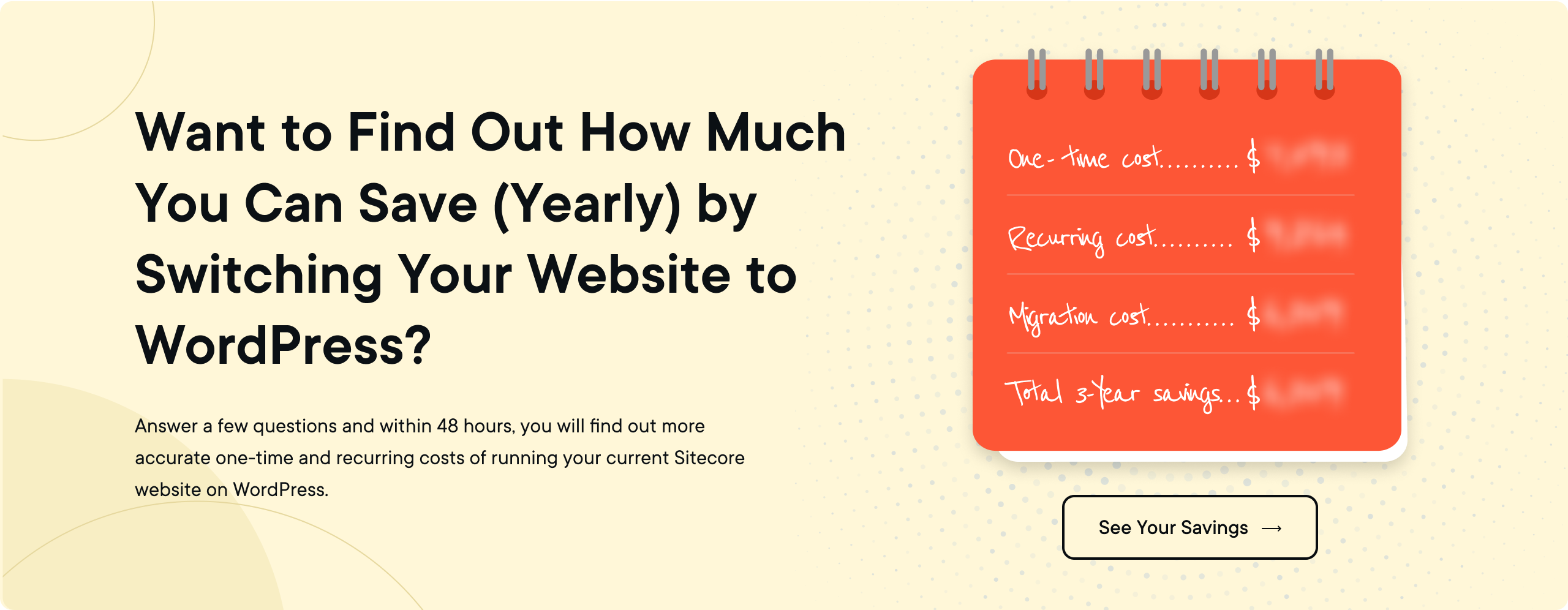
4.3 If You Still Have Any Concerns on Switching From Sitecore to WordPress? Let’s Address Them:
Migrating from one CMS to another is a big decision, and naturally, you have questions and concerns. If you’re considering moving from Sitecore to WordPress, you might be wondering if it’s the right fit for your organization. Let’s dive into some of the most common objections and questions—and show you how WordPress can meet your needs.
1. "Can WordPress handle the scale and complexity of our organization?"
Absolutely! WordPress powers some of the biggest websites in the world, like The New York Times and Rolling Stone. Whether you’re handling millions of visitors or managing multiple subsites, enterprise hosting solutions like WordPress VIP and WP Engine ensure scalability without breaking a sweat.
2. "Will WordPress support high-traffic volumes during peak times?"
Yes, WordPress is built to handle high traffic when paired with the right infrastructure. With managed hosting, caching tools, and CDNs like Cloudflare, your site can seamlessly manage traffic spikes without downtime.
3. "Sitecore offers extensive customization. Can WordPress provide the same level of flexibility?"
WordPress is known for its flexibility. Its massive ecosystem of plugins and themes allows for deep customization. And if something unique is needed, custom development can bridge any gaps. From design tweaks to complex functionalities, WordPress is up to the challenge.
4. "What happens to our current integrations with CRMs, ERPs, and marketing automation tools?"
WordPress integrates easily with tools like Salesforce, HubSpot, and Zapier through plugins or APIs. Even custom integrations can be built to ensure a seamless connection between your tech stack and WordPress.
5. "WordPress is open-source. Is it secure enough for our needs?"
Yes, WordPress is secure—if managed correctly. Regular updates, robust plugins like Wordfence, and enterprise-grade hosting solutions provide excellent protection. Managed hosting providers also include advanced firewalls and DDoS protection, ensuring your site stays safe.
6. "What measures will you take to ensure compliance with industry standards like GDPR, HIPAA, or FERPA?"
WordPress can meet compliance standards through specific plugins and configurations. Tools like WP GDPR Compliance or custom solutions ensure your site adheres to regulations. For sensitive data, encrypted connections and secure hosting further strengthen compliance.
7. "We rely on personalized content delivery with Sitecore. Can WordPress handle personalization at scale?"
Yes, WordPress can support dynamic, personalized content delivery using tools like WP Fusion and CRM integrations. Whether it’s showing tailored content to specific user segments or tracking user journeys, WordPress has you covered.
8. "How will this impact our multi-lingual and multi-site management?"
WordPress excels in this area with features like the Multisite functionality and plugins like WPML for multi-lingual content. You’ll have the tools to manage multiple sites or languages with ease. Multisite will work as a different site from the front-end and will have a centralized back-end system.
9. "How complex is the migration process? Will there be any downtime?"
Migration complexity depends on the size and structure of your site, but with the right team, it’s a smooth process. By using staging environments, we ensure minimal downtime and test everything before going live.
10. "What happens to our existing data, SEO, and content architecture?"
Your existing data and SEO won’t be lost. A professional migration plan ensures your content, metadata, and URLs transfer correctly, preserving your SEO rankings and content structure.
11. "Sitecore is expensive, but it works well for us. What’s the ROI of moving to WordPress?"
WordPress eliminates licensing fees, and the cost of plugins and hosting is significantly lower than Sitecore. This translates into savings that can be reinvested into growth initiatives while still delivering a top-notch website experience.
12. "Are there hidden costs, such as for plugins, hosting, or support?"
There are no hidden costs, but it’s essential to budget for hosting, premium plugins, and occasional maintenance. The overall costs are transparent and predictable, with significant savings compared to Sitecore.
13. "Our team is already trained on Sitecore. How difficult will it be to transition to WordPress?"
WordPress is known for its user-friendly interface, making the transition straightforward for most teams. A few training sessions can help your team get up to speed and fully leverage WordPress’s capabilities.
14. "Will we need to hire WordPress-specific developers or agencies?"
That depends on your requirements. Many organizations find that WordPress’s ease of use reduces the need for frequent developer support. For advanced customization, hiring a WordPress expert is a good option.
15. "Sitecore offers robust enterprise-level features. Does WordPress have equivalent tools for content workflows, user roles, and advanced analytics?"
WordPress offers similar tools through plugins and integrations. For workflows, plugins like PublishPress streamline approvals and editorial management. Advanced analytics can be achieved with tools like Google Analytics or integrations with BI platforms.
16. "Will WordPress support our ad revenue models, subscriptions, or gated content?"
Yes! Plugins like MemberPress, WooCommerce Subscriptions, and Ad Inserter make it easy to manage subscriptions, gated content, and ad revenue models.
PART 2: HOW TO MIGRATE FROM SITECORE TO WORDPRESS
You've made the decision to move from Sitecore to WordPress—excellent choice! Now comes the exciting part where we transform that decision into action. In the below sections, we'll walk you through each step of the migration process, from initial planning to post-launch optimization.
Migration doesn't have to be intimidating. With the right approach and proper planning, you can ensure a smooth transition that preserves your content, maintains your SEO equity, and sets you up for success on your new WordPress platform. Whether you're a technical decision-maker, a content strategist, or a marketing lead, you'll find valuable insights to help navigate this journey.
Let's break down this process into manageable steps and get started with the most critical phase: strategy.
STEP 1: HIGH-LEVEL STRATEGY
Before diving into the technical aspects, let's map out a strategic approach to ensure your migration is successful. A well-planned migration strategy will save you time, resources, and potential headaches down the road.
1.1 When should we migrate?
Timing is everything when it comes to migrating your enterprise website. The right moment to make this transition isn't just about technical readiness—it's about business alignment too.
Here are some clear signals that it's time to consider migrating from Sitecore to WordPress:
- License renewal approaching: If your Sitecore license is up for renewal in the next 3-6 months, it's the perfect time to evaluate alternatives before committing to another year.
- Growing maintenance costs: When your Sitecore implementation requires increasingly expensive specialized developers or consultants.
- End-of-support for your version: If your Sitecore version is nearing end-of-life, rather than upgrading within Sitecore (which can be costly), this presents an excellent opportunity to switch platforms.
- Publishing bottlenecks: Content creators constantly waiting for developer assistance or facing workflow delays.
- Scalability challenges: Your business is growing, but your Sitecore implementation struggles to scale at a reasonable cost.
- Technical debt accumulation: Your Sitecore customizations have become unwieldy and difficult to maintain.
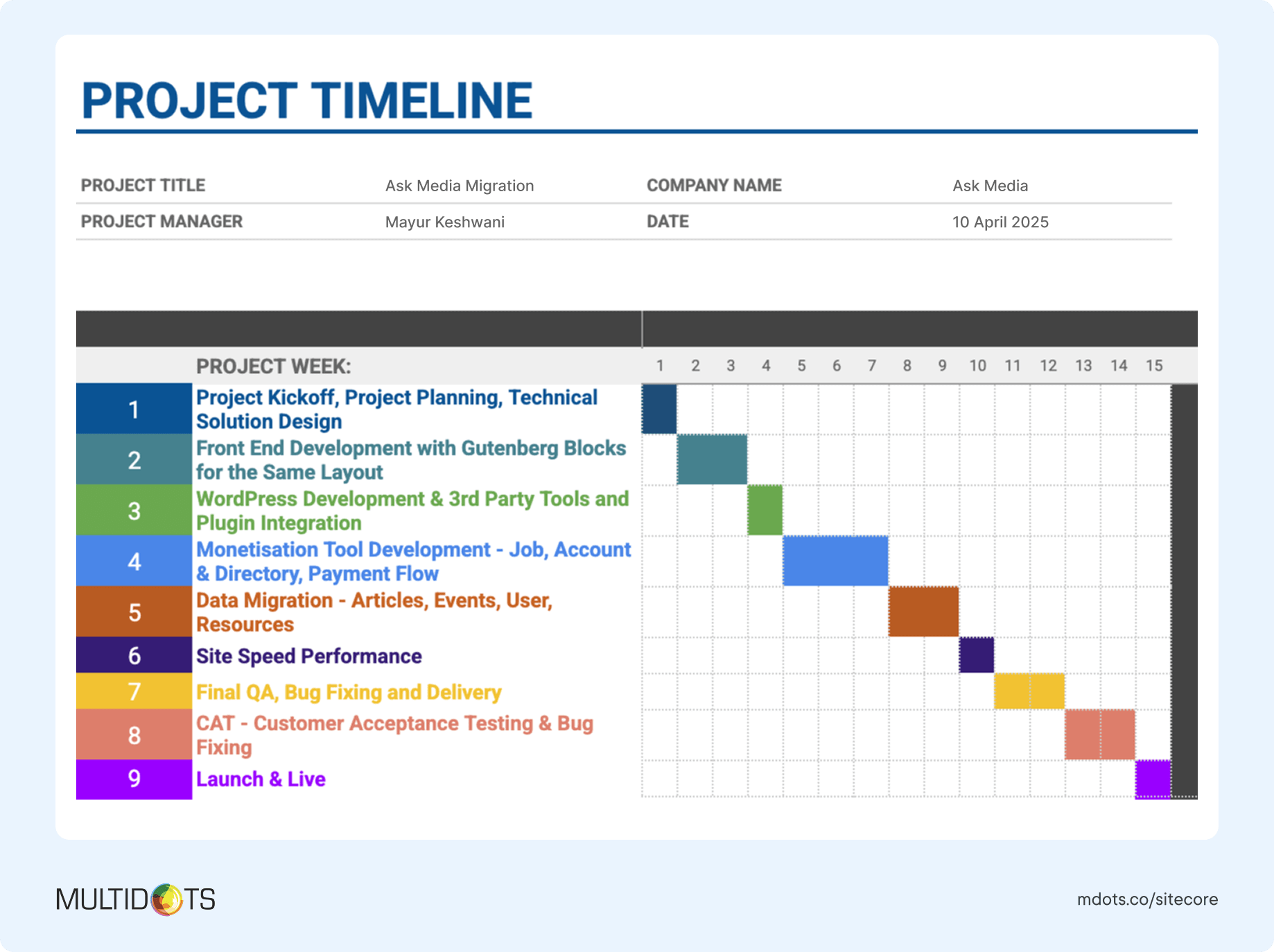
Enterprise-grade migrations can take several weeks to months depending on your website's complexity, content volume, and customization needs. The key is to start planning well before you face critical deadlines or technical emergencies.
Here's a quick way to decide when staying with Sitecore makes sense vs when switching to WordPress is the right call.
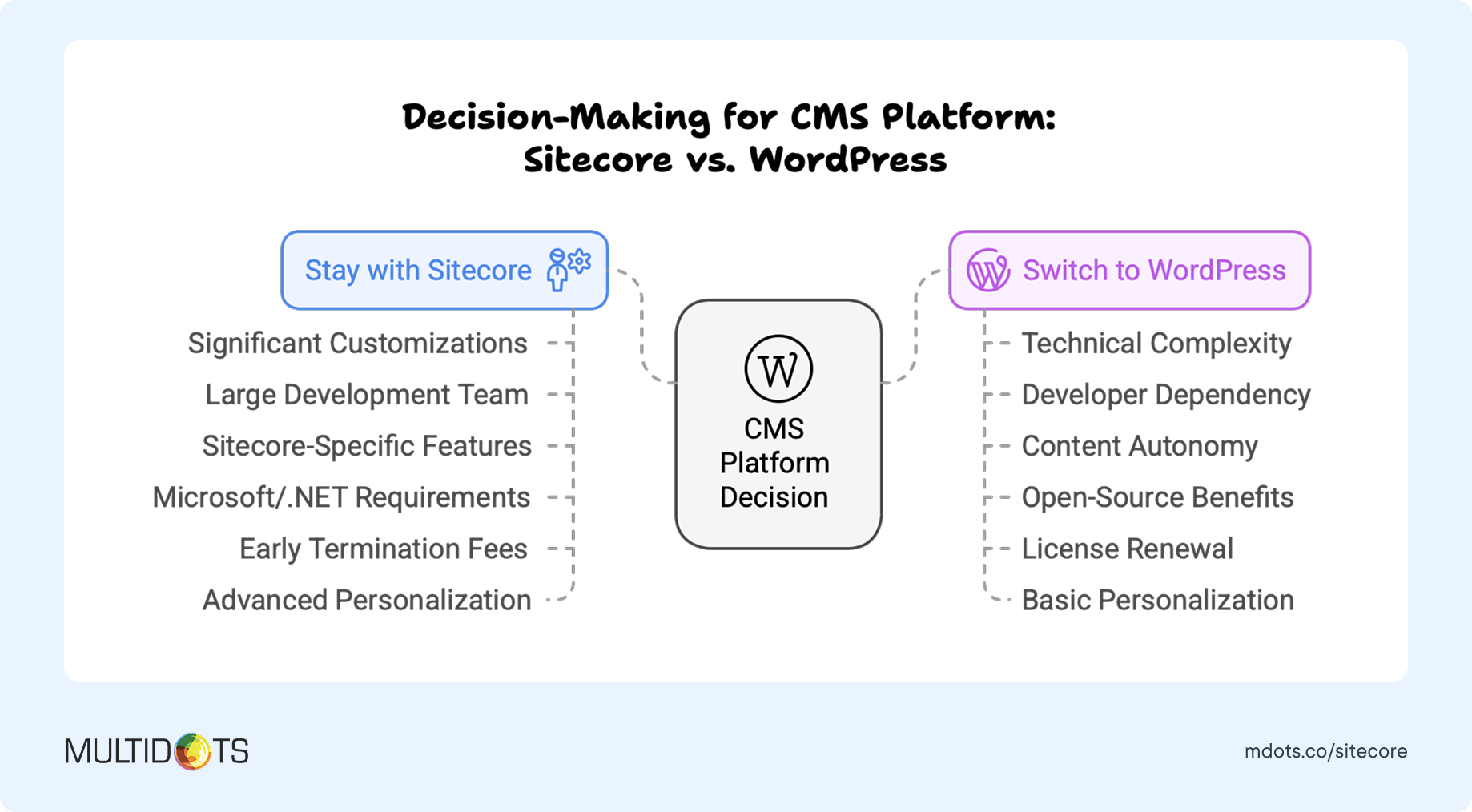
Remember, the best time to migrate is when you have sufficient runway—ideally 3-6 months before any critical deadlines—to ensure a smooth transition without rushing key decisions or implementations.
1.2 Which CMS should we migrate to?
While you're likely already considering WordPress since you're reading this guide, let's confirm why it's often the best choice for enterprises moving away from Sitecore.
WordPress powers over 43% of all websites on the internet, including enterprise sites for companies like Salesforce, Sony Music, The Walt Disney Company, and The New York Times. Its massive market share isn't accidental—it comes from offering exceptional value and capabilities.
Here's why WordPress stands out as the top alternative to Sitecore:
- Cost-effectiveness: Eliminate expensive licensing fees while maintaining enterprise-grade capabilities.
- Ease of use: Intuitive, user-friendly interface that requires minimal training for content creators.
- Flexibility: Highly adaptable to unique business needs through its extensive ecosystem.
- Vast talent pool: Access to a much larger pool of developers compared to specialized Sitecore expertise.
- Innovation pace: With thousands of contributors, WordPress evolves faster than proprietary alternatives.
- Enterprise-ready: With the right infrastructure and configuration, WordPress scales beautifully for enterprise needs.
Here's a quick features comparison of WordPress vs Sitecore (and other CMS - Sanity and AEM):
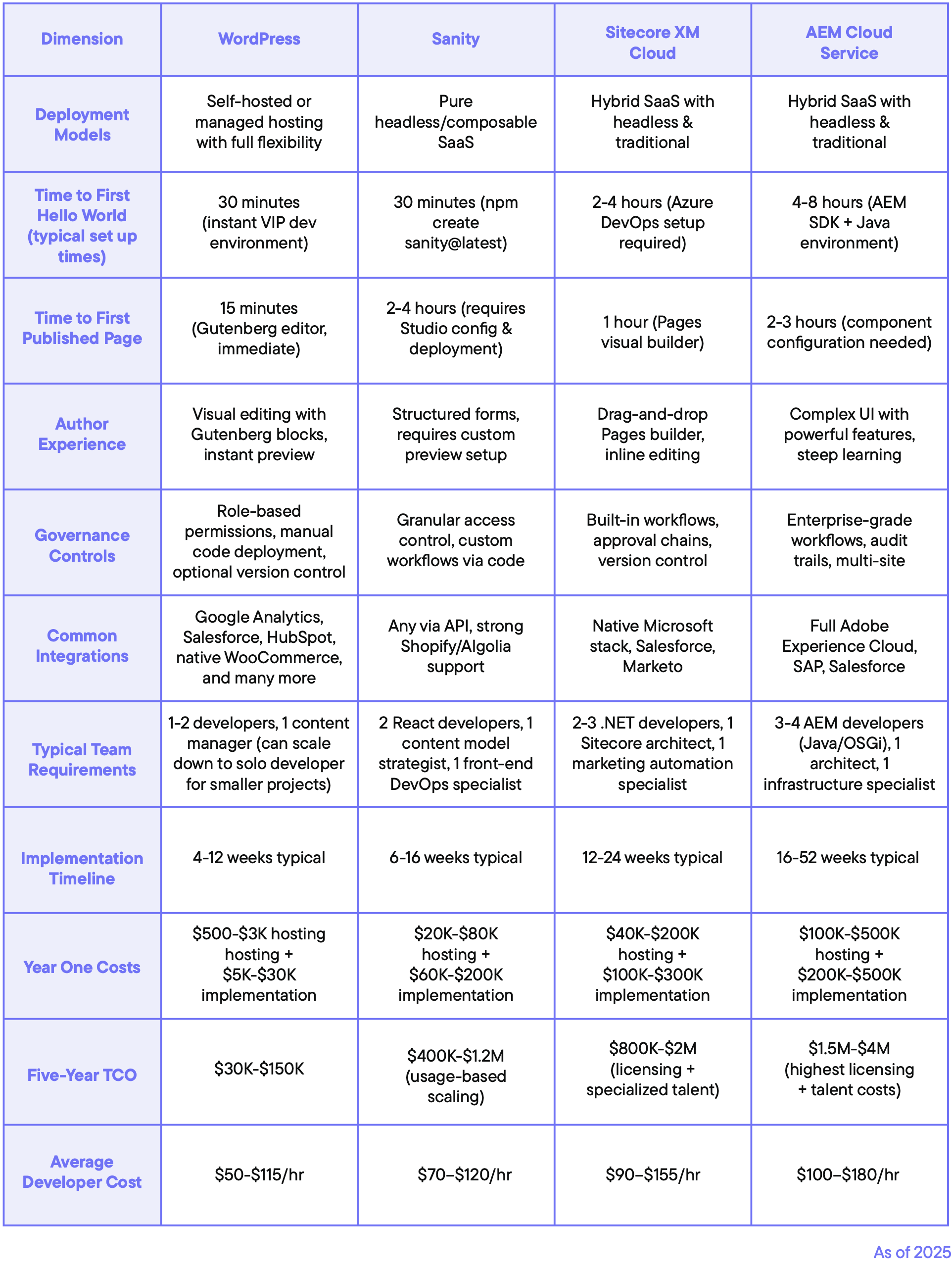
The strengths of WordPress align particularly well with organizations looking to improve content creation workflows, reduce total cost of ownership, and gain more flexibility in their digital ecosystem.
1.3 Same design or new design?
When migrating from Sitecore to WordPress, you have two options regarding your website's design: maintain your current design or take the opportunity to refresh it. Both approaches have their merits depending on your circumstances.
Choosing between these options isn't just about aesthetics—it's a strategic decision that impacts project timelines, budget, and overall success. Below we have shared a quick comparison of each approach.
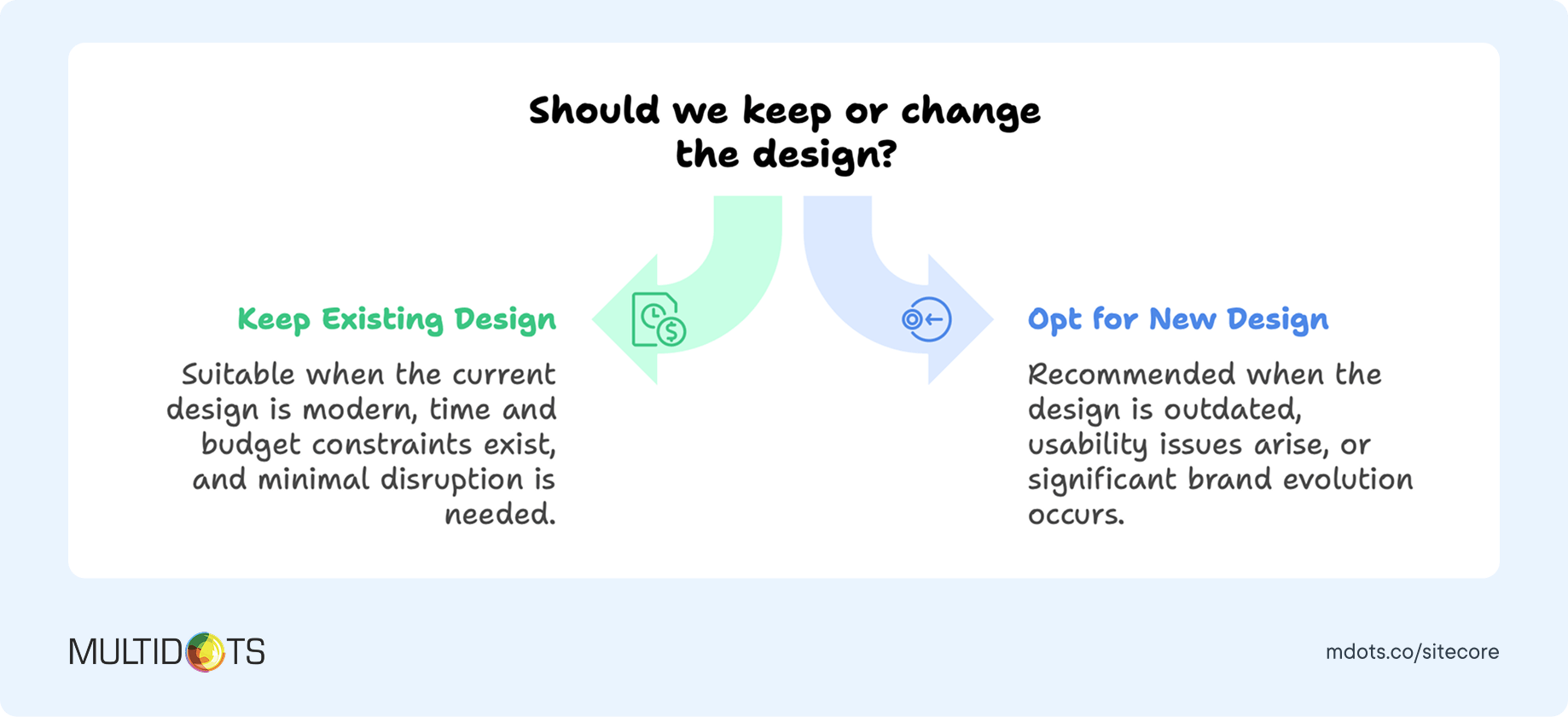
Remember that even if you choose to maintain your current design, you'll likely need some adjustments to optimize for WordPress's capabilities. A hybrid approach—keeping the overall brand look while improving specific components—can sometimes be the most practical solution.
1.4 Which Sitecore features do we want on the new website?
When migrating from Sitecore to WordPress, identifying which Sitecore functionalities are essential to your business operations is crucial. This ensures you don't lose critical capabilities in the transition while also avoiding unnecessary complexity.
WordPress offers powerful alternatives to most Sitecore features, often at a fraction of the cost and complexity. Let's map out the most common Sitecore features and their WordPress equivalents:
Common Sitecore Features and WordPress Alternatives
Before you begin the migration process, take inventory of the Sitecore features you're actually using—not just what you're paying for. Many organizations discover they're utilizing only a small percentage of Sitecore's capabilities but paying for the full suite.
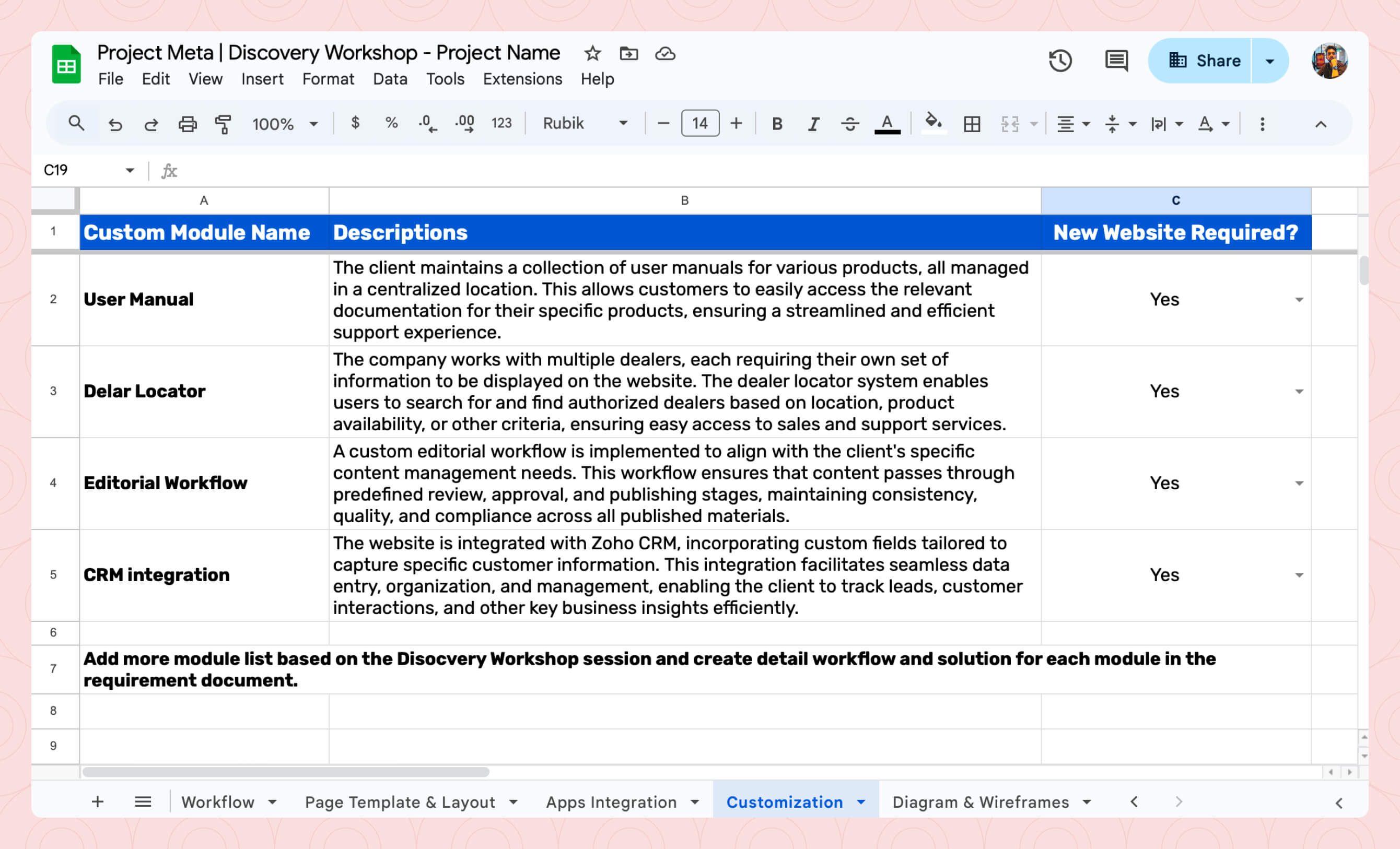
Here are the common Sitecore features and WordPress alternatives.
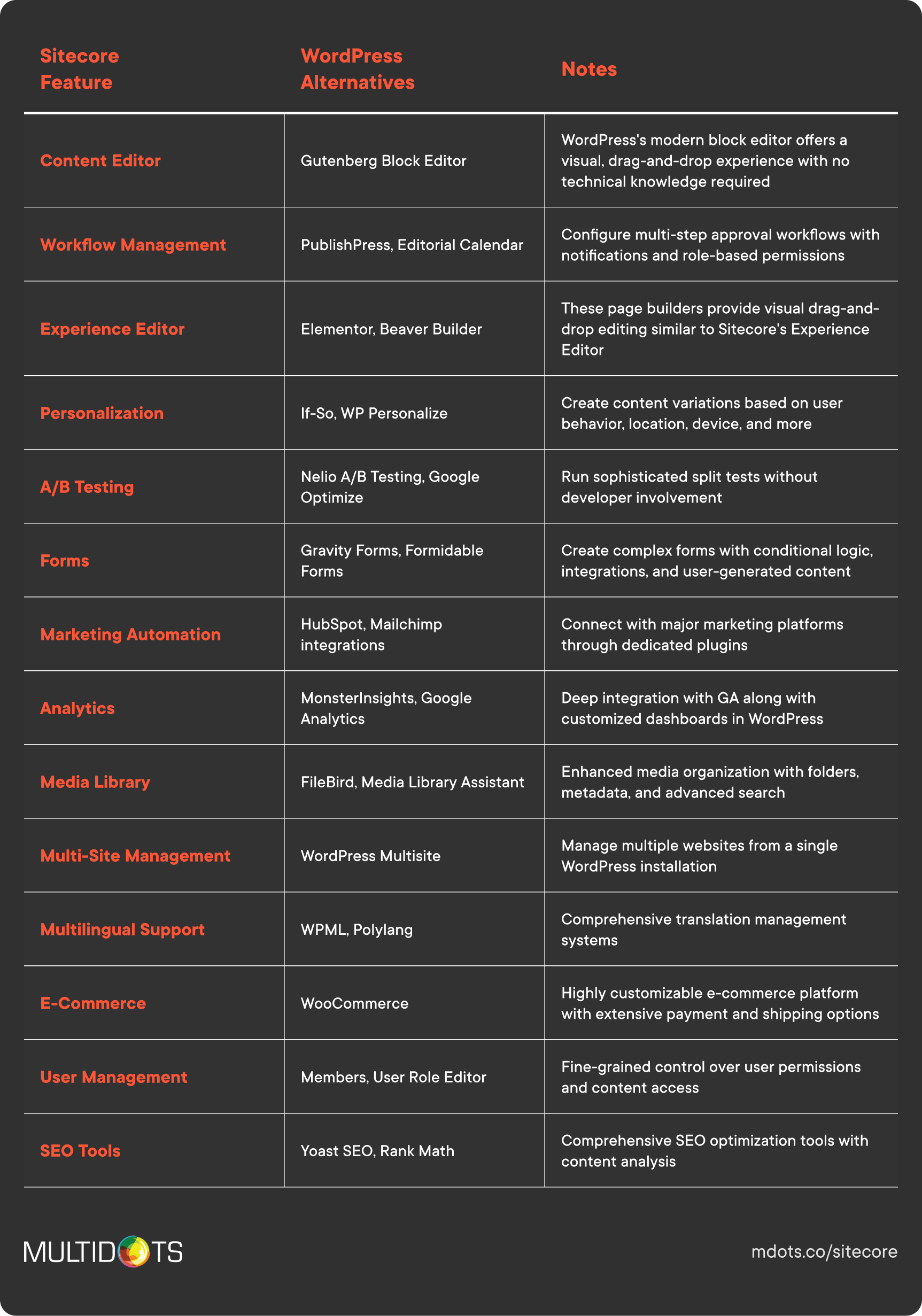
The beauty of WordPress is its flexibility—you can start with a streamlined setup and add functionality as needed, rather than paying for a full suite of features upfront.
Pro tip: Create a checklist of features you're actively using in Sitecore and prioritize them from "mission-critical" to "nice-to-have." This will help you focus your migration efforts on the most important capabilities first.
1.5 What third-party tools do we need integration with?
Your website doesn't exist in isolation—it's part of a broader technology ecosystem. When migrating from Sitecore to WordPress, mapping your existing integrations ensures business continuity and data flow between systems.
WordPress's open architecture makes it exceptionally integration-friendly, often offering more flexibility than Sitecore when connecting with third-party tools and services.
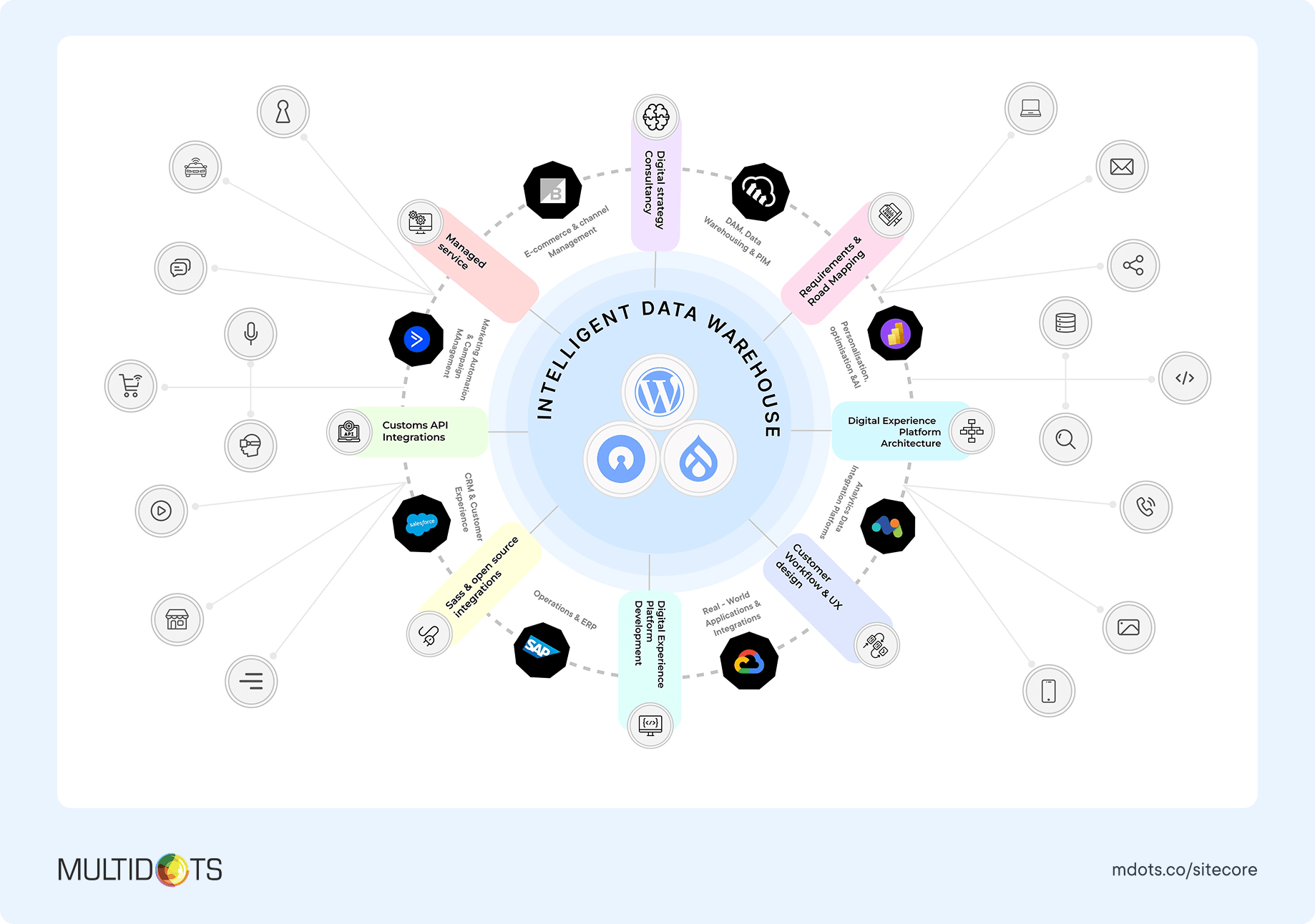
Use this table to catalog your current integrations and identify WordPress alternatives:
| Integration Category | Current Tool | Integration Method in Sitecore | WordPress Alternative | Integration Method |
|---|---|---|---|---|
| CRM | Salesforce | Sitecore Connect | WP Fusion, Gravity Forms Salesforce | API |
| Marketing Automation | Marketo | Custom | WP Marketo, Gravity Forms + Zapier | API, Webhook |
| Analytics | Google Analytics | Script injection | MonsterInsights | Plugin |
| Payment Gateway | Stripe | Custom | WooCommerce Stripe Gateway | Plugin |
| Email Marketing | Mailchimp | Custom module | MC4WP | Plugin |
| Social Media | Various | Sitecore Social Connected | Smash Balloon, Nextend Social | Plugin |
WordPress integrations generally fall into four categories:
A. Native WordPress Plugins
The WordPress repository contains over 59,000 free plugins, many specifically designed to integrate with popular services. These plugins are vetted, regularly updated, and often provide the simplest integration path.
B. Premium Integration Solutions
For enterprise needs, premium plugins often offer more robust features, dedicated support, and regular updates. Examples include WP Fusion (CRM integration) and Advanced Custom Fields PRO.
C. Custom API Integrations
For specialized needs, WordPress's REST API provides a powerful way to build custom integrations with practically any service that offers an API.
D. Integration Platforms
Services like Zapier, Integromat (now Make), or Workato connect WordPress with thousands of applications without custom coding.
WordPress's vast plugin ecosystem (59,000+ in the official directory) means you'll rarely need to build integrations from scratch. Additionally, REST API capabilities allow for custom integrations with virtually any service, while Zapier connects WordPress to 3,000+ apps without custom development.
During your planning phase, take inventory of all current integrations, their importance to your business processes, and how frequently they're used. This will help prioritize and budget for integration work during the migration.
1.6 Where should we host the new website?
Hosting is the foundation of your WordPress website's performance, security, and reliability. For enterprises migrating from Sitecore, selecting the right hosting provider is a critical decision that impacts everything from site speed to scaling capabilities.
Enterprise WordPress sites have different hosting requirements than smaller websites. You'll need a solution that can handle high traffic volumes, complex functionality, and mission-critical reliability.
Here are a few top enterprise WordPress hosting options:
| Hosting Provider | Best For | Price Range (as of April 2025) | Key Features |
|---|---|---|---|
| WordPress VIP | Large enterprises with critical performance needs | Starting ~$25K/year | Highest-tier security, unlimited scaling, dedicated support team |
| WP Engine | Mid to large organizations balancing performance & cost | $600-$5K+/month | Excellent performance, dev/staging setup, automated backups |
| Pantheon | Organizations with active development needs | $500-$10K+/month | Google Cloud infrastructure, extensive global reach |
| Kinsta | Performance-focused businesses with moderate traffic | $400-$2K+/month | Excellent developer tools, git workflow, multi-environment testing |
| Pagely | Enterprise sites with custom needs | $500/month-custom pricing | VPS-based, highly customizable, excellent security |
When evaluating hosting providers, consider both your current needs and future growth. The right hosting partner should scale with your business and provide the technical foundation for your WordPress investment to flourish.
Here are a few essential hosting features that every enterprise needs:
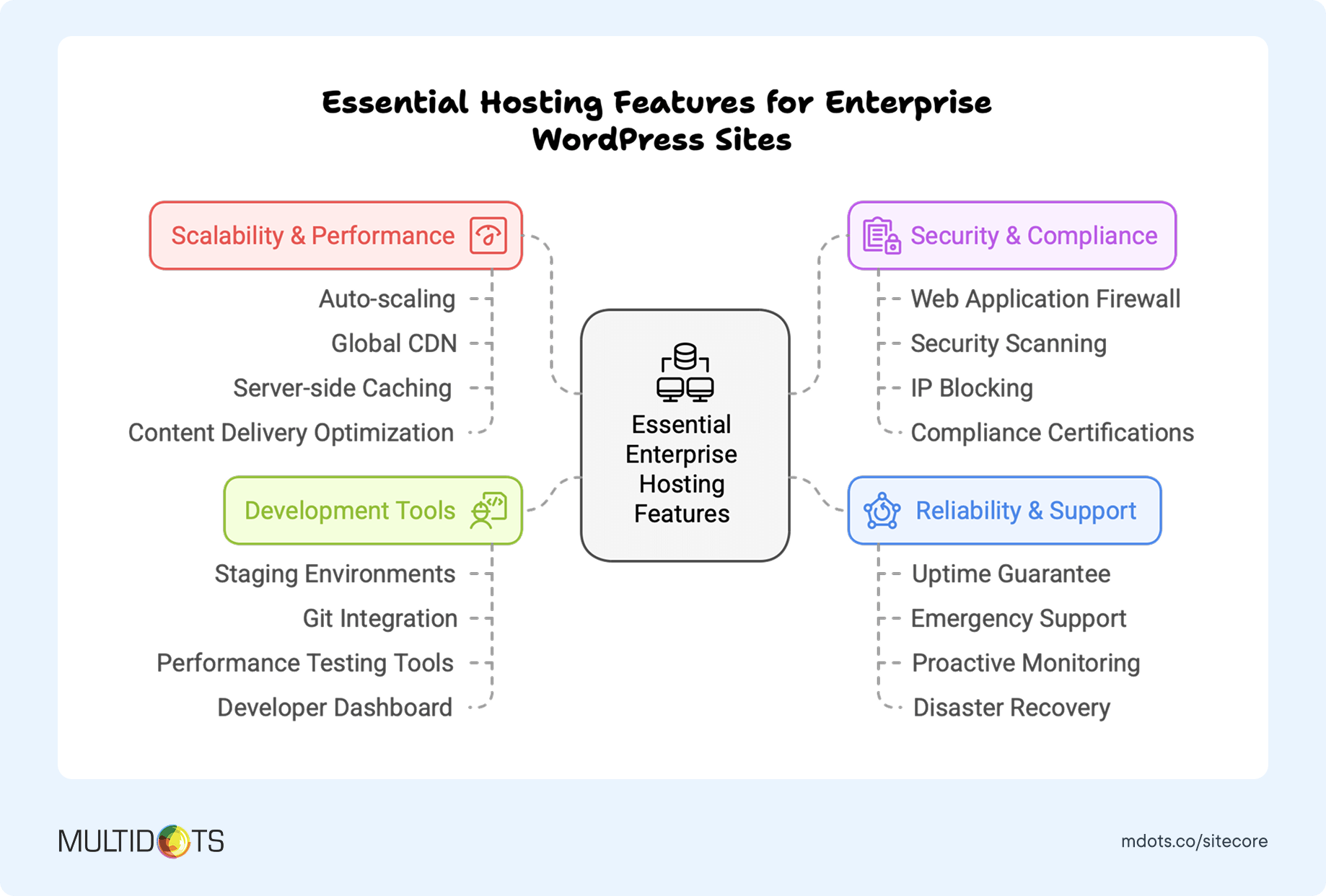
For most enterprises migrating from Sitecore, managed WordPress hosting like WordPress VIP offers the best combination of performance, security, and support. These providers handle WordPress-specific optimizations, security hardening, and updates, allowing your team to focus on content and strategy rather than server management.
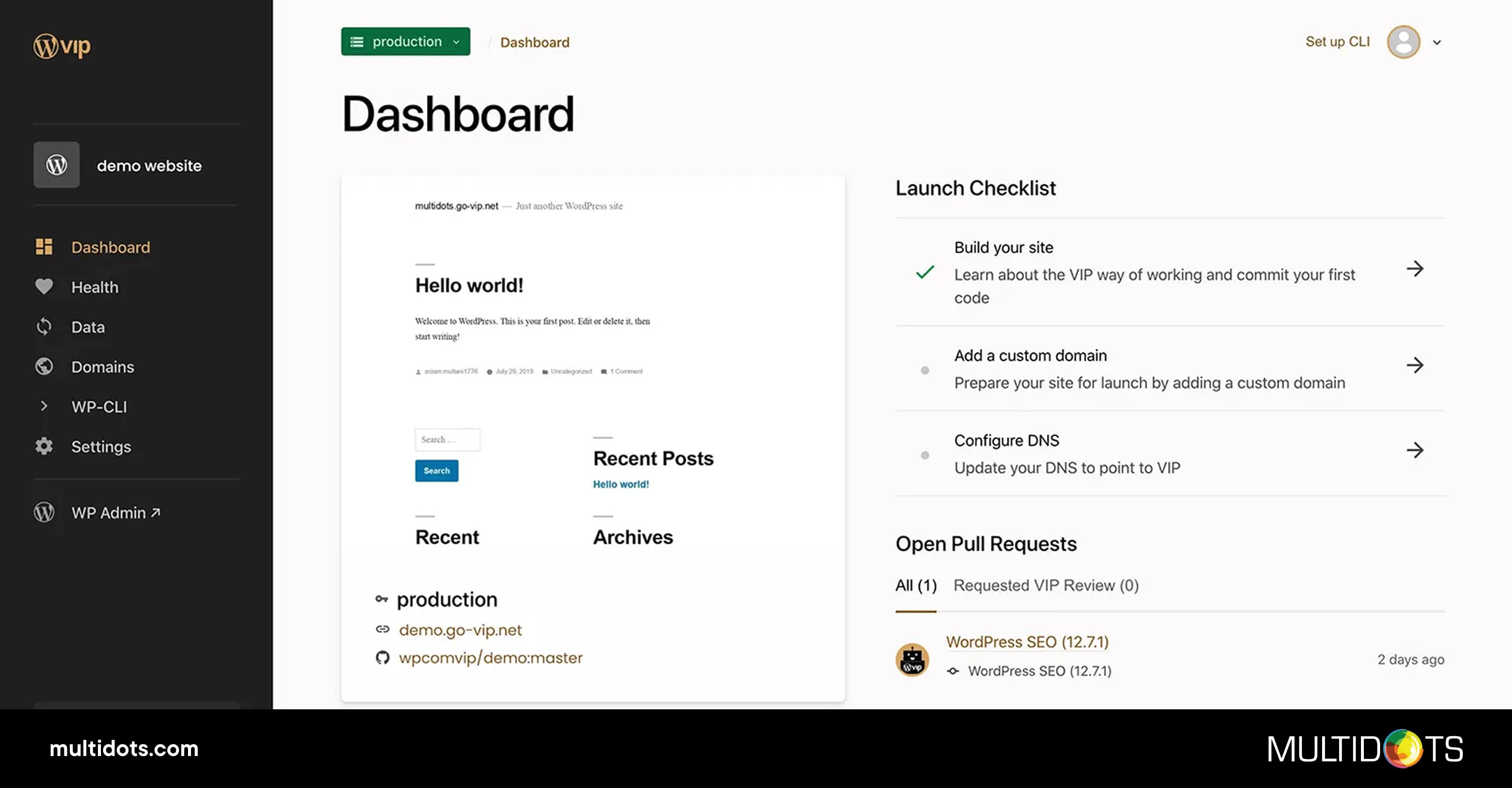
Remember that hosting costs for enterprise WordPress sites are typically still a fraction of Sitecore licensing fees, even at the premium hosting tiers.
STEP 2: GETTING READY FOR THE MIGRATION
With a high-level migration strategy in place, you're ready to tackle the necessary preparations to ensure a smooth process. Below is a checklist to help you navigate the key steps before you migrate from Sitecore to WordPress:
2.1 Backup your data
First things first – always, always back up your data. This is your safety net should anything go wrong during migration.
Here's how to back up your Sitecore site's content:
- Log into Sitecore.
- Navigate to the Control Panel.
- Select the 'Database Backup' option.
- Choose the database you want to back up.
- Click 'Backup Now' to start the process.
Remember, even if you're planning to rebuild your site from scratch in WordPress, having a complete backup of your Sitecore site provides an invaluable reference point.
Pro tip: Test your backups by restoring them to a development environment before proceeding with the migration. This verifies that your safety net will actually catch you if needed.
2.2 Take inventory of content
A thorough content inventory is crucial for understanding exactly what needs to be migrated. This step helps you decide what to keep, what to update, and what to leave behind.
Your content audit should include:
- Pages (URLs, titles, content types)
- Blog posts and articles
- Media assets (images, videos, PDFs)
- Forms and interactive elements
- Custom templates and components
- Metadata (SEO titles, descriptions)
Looking to take control of your content migration?
Use our Content Audit Template to track all your content systematically. This template includes tabs for different content types and fields for organizing, prioritizing, and streamlining every step.

Categorizing your content by type will help organize the migration process. For example, you might want to migrate your product pages first, followed by blog posts and then marketing landing pages.
Identifying your most valuable content assets is also crucial – these are the pages that drive the most traffic and conversions. They should receive special attention during migration to maintain their SEO value and user experience.
2.3 Snapshot of page rankings & performance
Before migrating, capture your current SEO and performance metrics. This gives you a baseline to compare against after migration and helps you prioritize high-value pages.
Tools to capture your pre-migration SEO data:
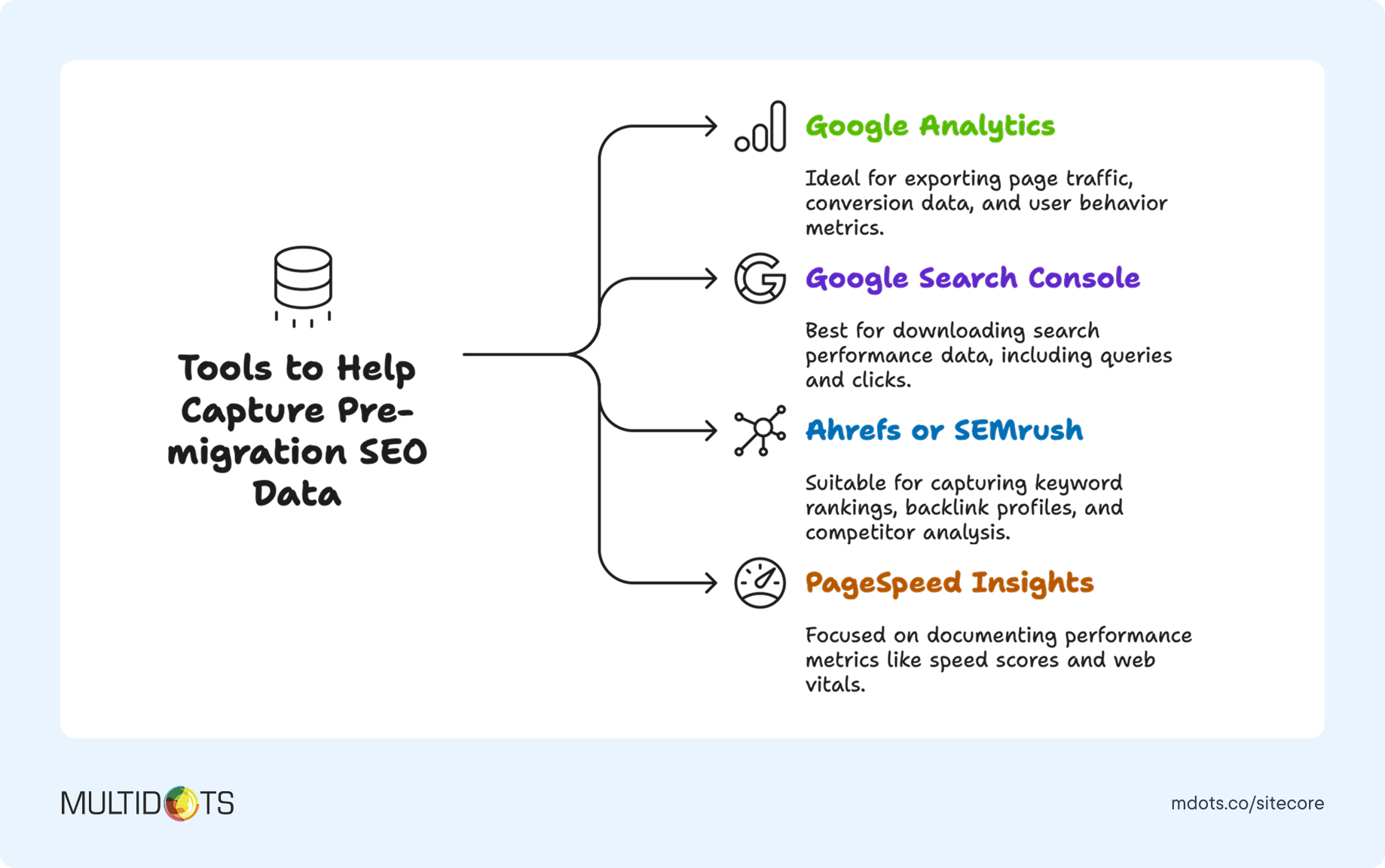
Most importantly, export a complete list of your top-performing pages by organic traffic. These pages will need special attention during migration to preserve their SEO value.
Here's how to create a comprehensive SEO snapshot:
- Export your site structure from Screaming Frog or a similar crawler
- Pull organic traffic data from Google Analytics
- Export keyword rankings from Search Console or an SEO tool
- Document page speed metrics using Lighthouse or PageSpeed Insights
- Capture backlink data for your most important pages
2.4 Taxonomies
Taxonomies—your categories, tags, and custom content classifications—are vital for maintaining content organization and user navigation.
In Sitecore, taxonomies are often implemented as hierarchical structures in the content tree. WordPress uses a different approach with its built-in taxonomy system. Mapping these correctly ensures your content remains properly organized after migration.
Why taxonomies matter during migration:
- They maintain logical content groupings
- They support proper URL structures
- They enable intuitive navigation
- They help preserve SEO value
To properly migrate your taxonomies:
- Document your current Sitecore taxonomy structure
- Map Sitecore taxonomies to WordPress categories and tags
- Plan for any custom taxonomies you'll need to create in WordPress
- Ensure taxonomy slugs align with your URL structure plan
Pro tip: Consider this migration as an opportunity to clean up and optimize your taxonomy structure. Are there unused categories that can be removed? Could your tag system be more consistent? Now is the time to make these improvements.
Here's a video walkthrough on how you can migrate taxonomies from Sitecore to WordPress:
By thoroughly preparing in these four key areas, you'll lay a solid foundation for a successful migration from Sitecore to WordPress. The time invested in preparation will pay dividends by preventing data loss, maintaining SEO value, and ensuring a smoother transition process.
Ready to take the next step? Let's move on to setting up your WordPress destination environment.
STEP 3: SETUP WORDPRESS
After mapping out your migration strategy, it's time to establish your WordPress environment. This step is crucial as it lays the foundation for how your content will be structured, who can access it, and how users will interact with it once migrated from Sitecore.
A properly configured WordPress setup ensures that you're not just replicating your Sitecore website, but actually enhancing it by leveraging WordPress's flexibility and user-friendly features.
3.1 Traditional or Headless CMS
When setting up WordPress after migrating from Sitecore, one of the first decisions you'll need to make is whether to go with a traditional or headless architecture.
Traditional WordPress follows a monolithic approach where the content management backend and the frontend presentation layer are tightly coupled. This is the classic WordPress setup most people are familiar with – you manage content in the WordPress admin panel, and it's displayed using your chosen theme.
Headless WordPress, on the other hand, decouples the content management system from the frontend. Your content is stored in WordPress but accessed via the REST API or GraphQL, allowing it to be displayed on any frontend technology (React, Vue, Angular, native mobile apps, etc.).
Headless WordPress is particularly beneficial for enterprises that:
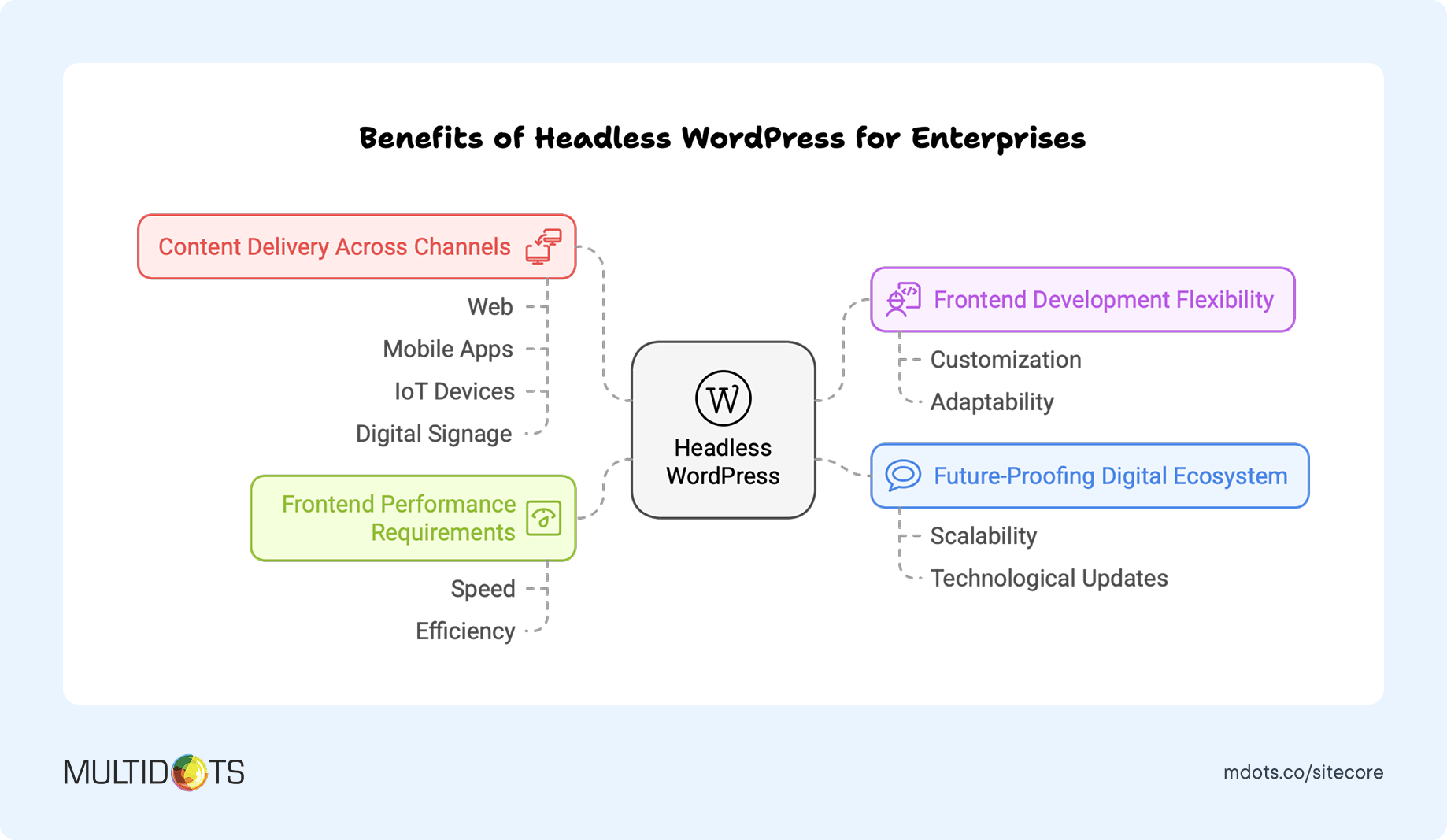
For example, The New York Times uses a headless WordPress setup to manage their content, which is then delivered across their website, mobile apps, and even voice assistants. This allows them to maintain a single source of truth for their content while delivering optimized experiences on each platform.
However, headless isn't always the right choice. Traditional WordPress remains ideal if:
- You prefer an all-in-one solution
- Your team is more familiar with traditional CMS workflows
- You have limited developer resources
- You need to deploy quickly
Pro tip: Learn how billion-dollar enterprises leverage Headless WordPress for scalability and performance.
3.2 Single or Multisite
Another critical decision is whether to implement WordPress as a single site or multisite network. This choice depends on your organizational structure, brand architecture, and content governance needs.
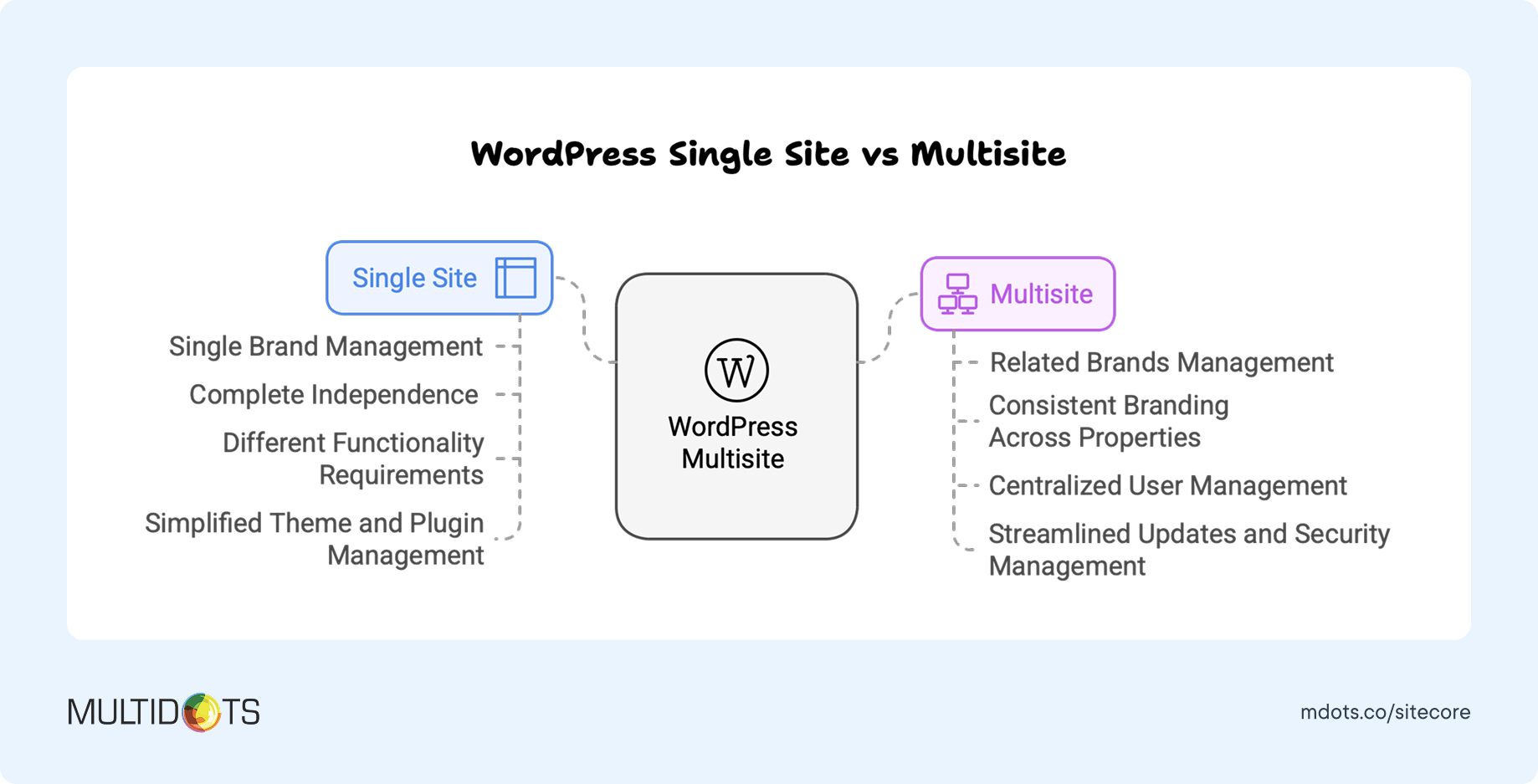
Setting up a multisite network is straightforward but requires some technical understanding:
- Download WordPress: Visit the WordPress.org download page and download the WordPress package.
- Upload the WordPress Files: Upload the files to your web server using an FTP client.
- Create a Database and User: Create a MySQL database and user with full privileges.
- Configure WordPress: Visit your domain in a web browser, and you'll be prompted to fill in your database information. Follow the on-screen instructions.
- Complete the Installation: Choose your site name, admin username, password, and email. Click "Install WordPress."
Here's a complete video walkthrough on how to setup WordPress multisite with its best practices:
Remember, the choice between a single site and multisite is crucial to the success of your Sitecore to WordPress migration. Analyze your needs, consult your migration team, and make the decision that best aligns with your specific goals.
3.3 User roles and permissions
Properly configuring user roles and permissions is essential for maintaining security and workflow efficiency after migrating from Sitecore to WordPress.
Here's a video on Sitecore user roles and how you can transfer them from Sitecore to WordPress:
WordPress includes these default user roles:
- Administrator: Complete control over the site
- Editor: Can publish and manage all content
- Author: Can publish and manage their own content
- Contributor: Can write and manage their posts but not publish
- Subscriber: Can only manage their profile
However, enterprises often need more nuanced permissions. For example, you might need:
- Content Approvers: Can review but not create content
- SEO Specialists: Can edit meta descriptions but not publish
- Department Managers: Can manage content only within their section
WordPress allows you to create custom roles and adjust capabilities using plugins like PublishPress Permissions or Members.
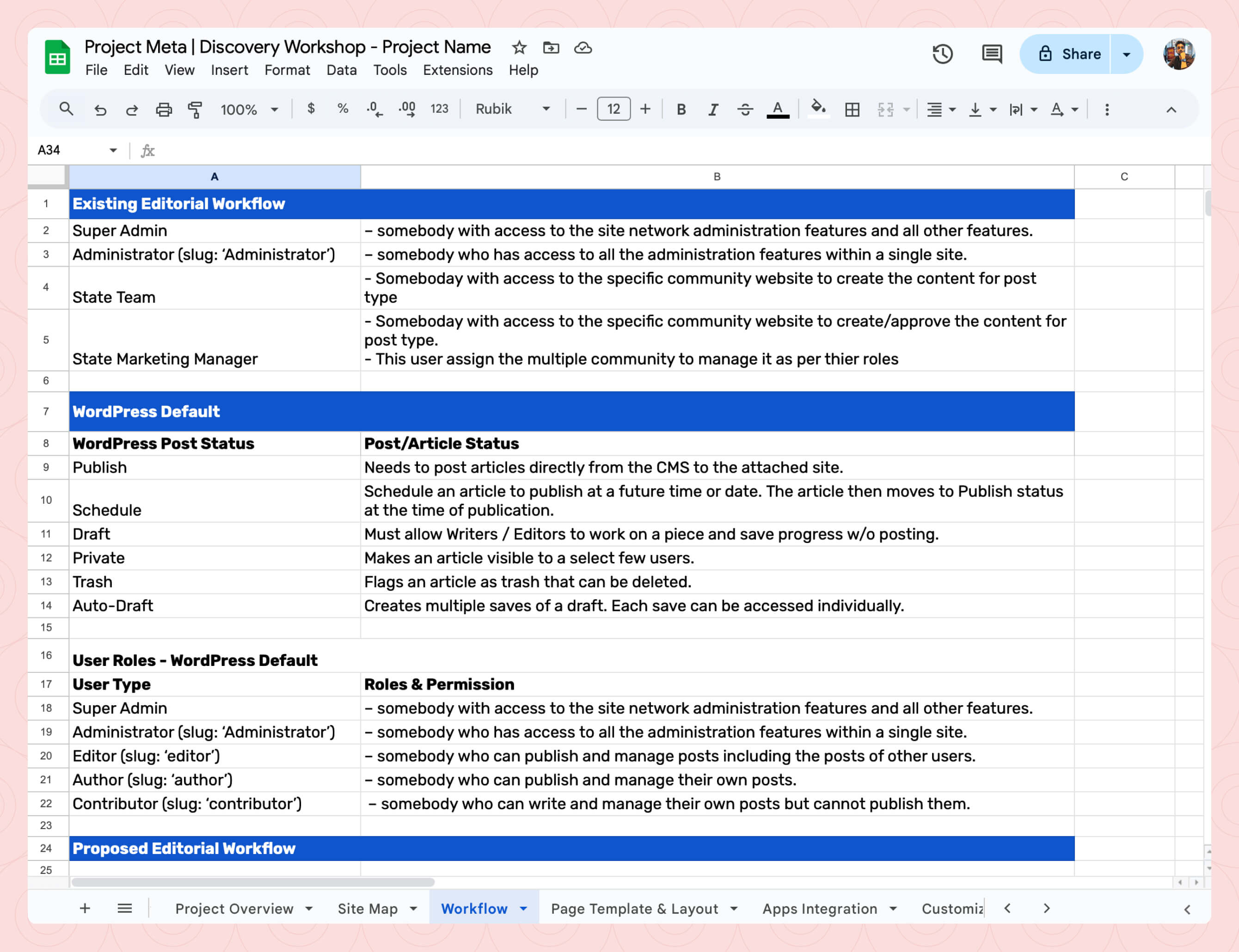
Here's a quick user role mapping table to help you when converting your Sitecore site to WordPress:
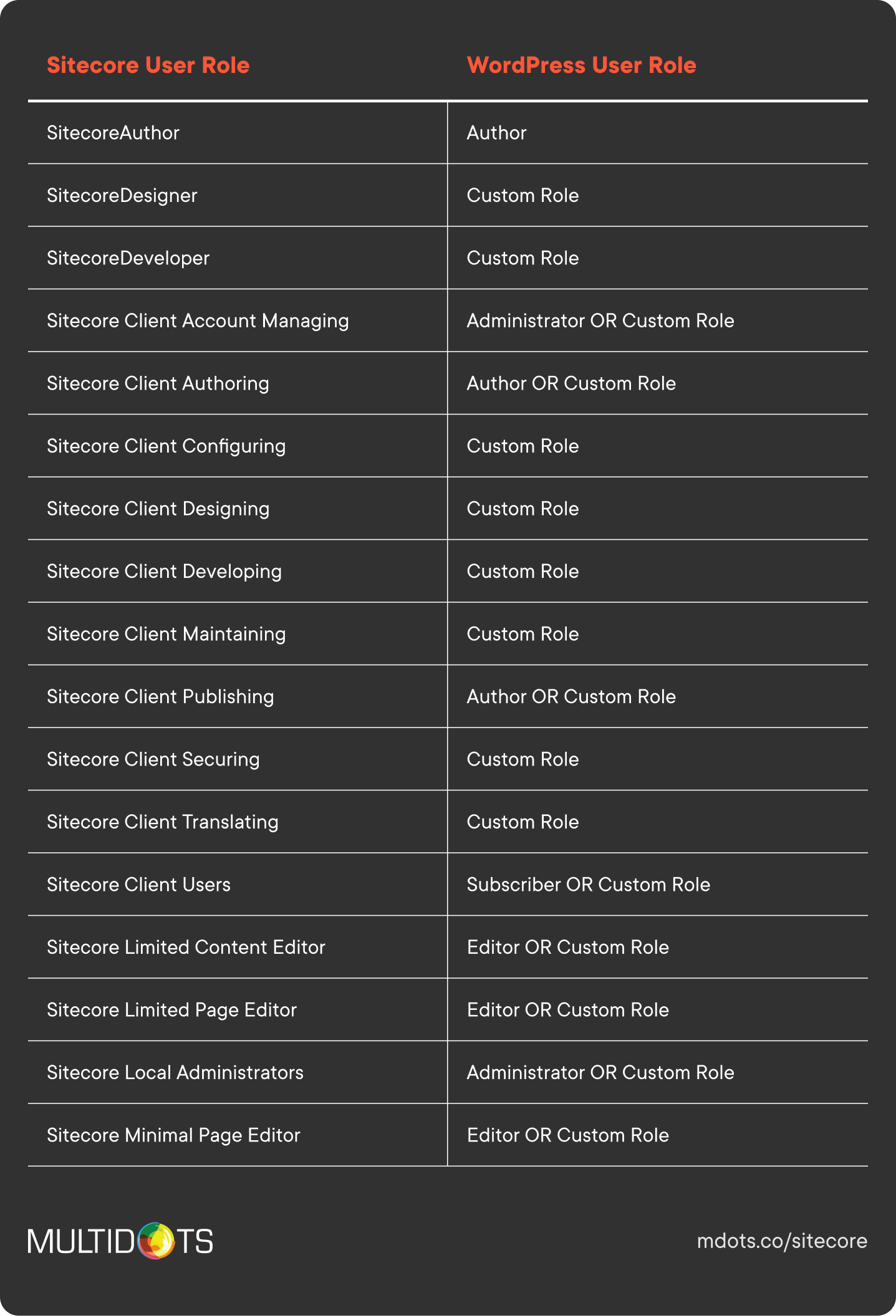
When you migrate content from Sitecore to WordPress, considering these user roles ensures a smoother transition, a more secure system, and a better alignment with your team's needs.
3.4 Custom blocks & templates
One of WordPress's most powerful features is the Gutenberg block editor, which provides a flexible, modular approach to content creation – a significant upgrade for many Sitecore users.
Gutenberg blocks are reusable content components that can be added, arranged, and styled independently. This modular approach gives content creators unprecedented flexibility while maintaining design consistency.
Enterprise teams can create custom blocks for specific needs:
- Hero sections with consistent branding
- Product comparison tables
- Location finders with integrated maps
- Compliance-approved disclaimers
- Interactive calculators or configurators
These custom blocks can include validation rules, default content, and styling that aligns with your brand guidelines – all while being intuitive for content creators to use.
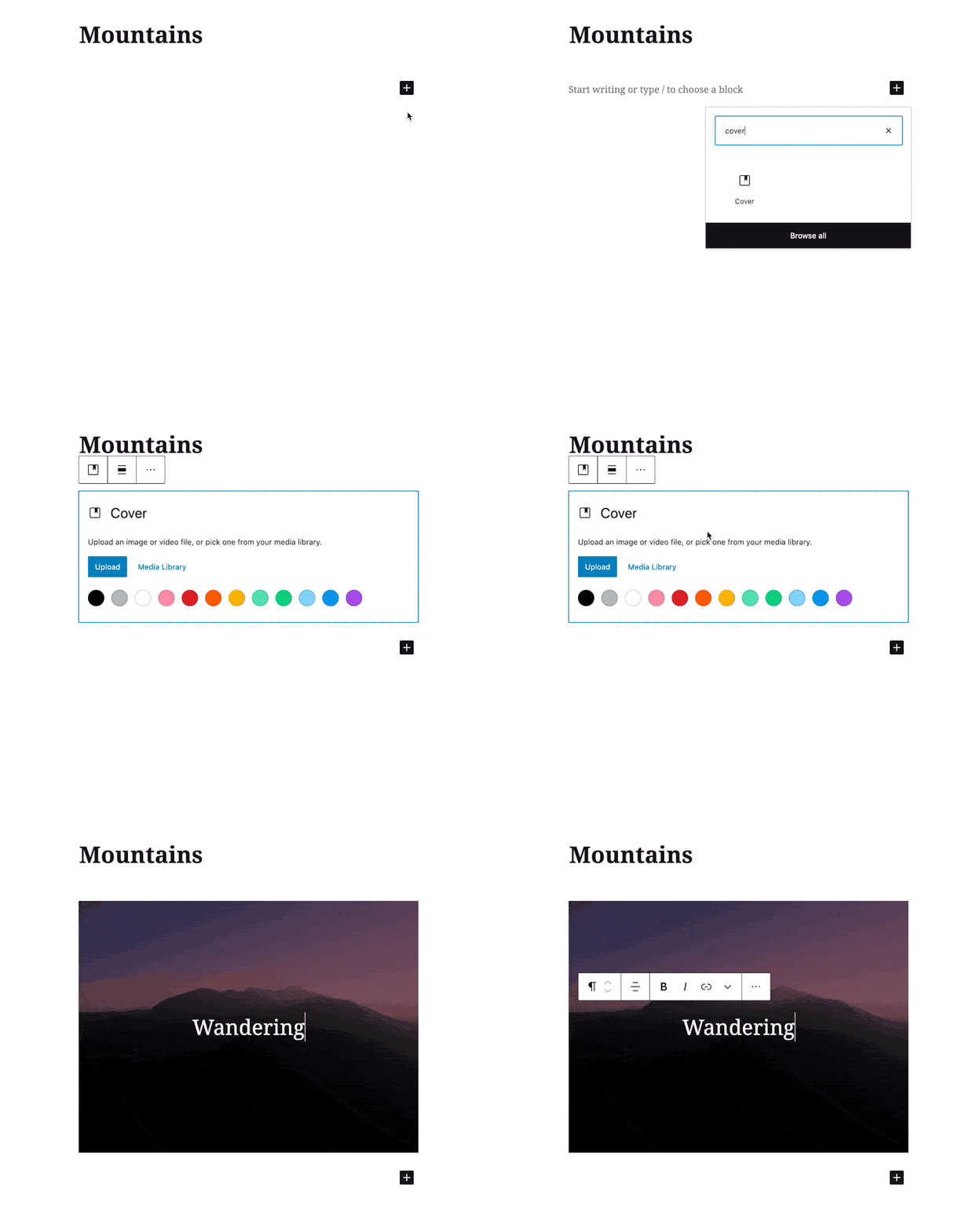
For larger organizations, creating reusable templates based on these blocks ensures consistency across hundreds of pages. For example, you can create templates for:
- Product pages
- Location pages
- News articles
- Event announcements
- Resource downloads
Here's a quick video on how to create reusable blocks in Gutenberg:
3.5 Plugins
The right plugin selection forms the backbone of a robust WordPress implementation, especially for enterprises migrating from Sitecore.
Must-have enterprise plugins include:
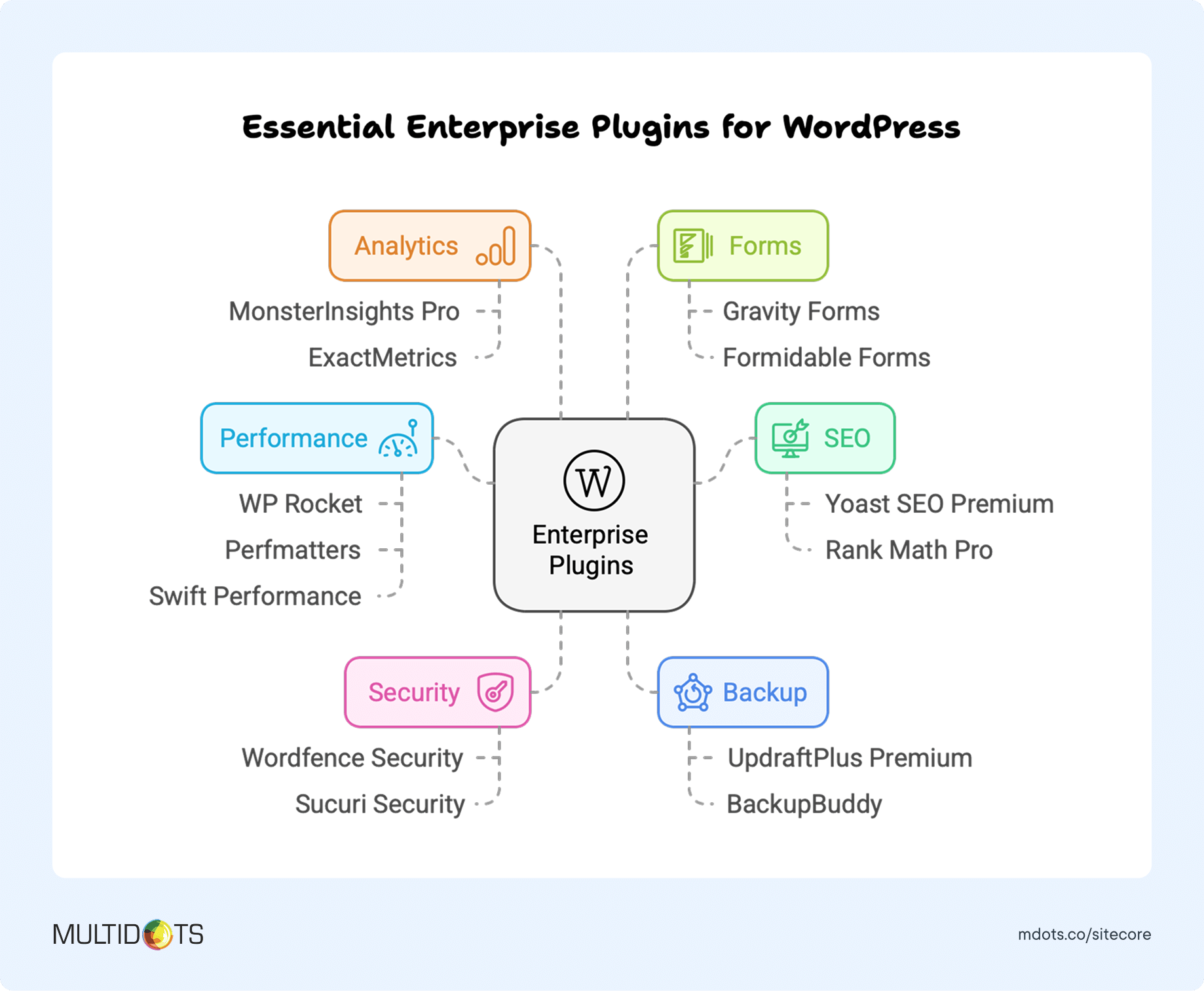
When vetting plugins for enterprise use, consider:
- Development Activity: Ensure regular updates (check the "Last Updated" date)
- Support Quality: Look for responsive support teams
- User Base: Plugins with many active installations indicate stability
- Code Quality: Premium plugins often have better code standards
- Performance Impact: Test the plugin's effect on page load times
- Security History: Research if the plugin has had security vulnerabilities
WordPress VIP Technology Partners offer pre-vetted, enterprise-ready plugins that meet stringent performance and security requirements, including:
- Cloudflare (security)
- Salesforce (marketing)
- Parse.ly (analytics)
- Yoast (SEO)
Multidots Plugins for Enterprise Users:
- Multicollab: Enables Google Docs-style collaboration in WordPress with comments, suggestions, and approval workflows – essential for editorial teams transitioning from Sitecore
- Better by Default: Enhances the WordPress admin experience with customizable defaults and templates
3.6 Custom plugins
While WordPress's plugin ecosystem is vast, sometimes you'll need functionality that doesn't exist in off-the-shelf solutions. That's where custom plugins come into play.
Consider developing custom plugins when:
- You need deep integration with proprietary systems: For example, connecting to your custom CRM, ERP, or other internal tools that Sitecore currently integrates with
- You have unique content workflows: If your editorial process includes specialized approval steps or unique collaborative features
- Security requirements demand it: When you need specific encryption or data handling protocols that generic plugins don't offer
- Performance optimization is critical: When you need highly optimized code for specific high-traffic or resource-intensive features
- You're migrating unique Sitecore functionality: For specialized features your team relies on that don't have WordPress equivalents
For example, a pharmaceutical company migrating from Sitecore might need a custom plugin to handle their unique regulatory compliance needs, such as automated disclaimer management or region-specific content restrictions.
The development of custom plugins should follow enterprise software best practices:
- Clear requirements documentation
- Proper version control
- Comprehensive testing
- Security auditing
- Performance optimization
- Thorough documentation
When properly developed, custom plugins can provide significant competitive advantages while maintaining the user-friendly experience that makes WordPress appealing in the first place.
If you're considering a Sitecore to WordPress migration and need guidance on custom plugin development, our team can help evaluate your specific requirements and recommend the most efficient approach.
STEP 4: LAUNCH
So you've made it to the final stage of your Sitecore to WordPress migration journey—congratulations! By now, you've planned your strategy, mapped out your content structure, and set up your WordPress environment. Now it's time to bring your vision to life by executing the actual content migration and launching your new WordPress site.
This step is where all your preparation pays off. In this section, we'll walk through the process of migrating your content, optimizing your media assets, running through a comprehensive pre-launch checklist, and thoroughly testing your new WordPress site before going live.
Let's make sure your migration crosses the finish line smoothly!
4.1 Content migration
Content migration is often the most time-consuming part of any CMS transition. Fortunately, with the right approach, you can streamline this process and ensure all your valuable content makes the journey intact.
Let's break down the process of exporting your content from Sitecore:
- Log into Sitecore CMS as an administrator.
- Navigate to the Control Panel → Localization → Export Languages.
- Select the language you want to export and choose a top-level Sitecore item to serve as the 'root' element for your export.
- Click 'Next' and wait for the export process to complete.
- Select the Sitecore item Content that you want to export.
- Choose the destination path where you want to store the XML database on your server.
- Download the XML file to your local system.
- The result will be an XML file containing your Sitecore content in a structured format that can be converted for WordPress.
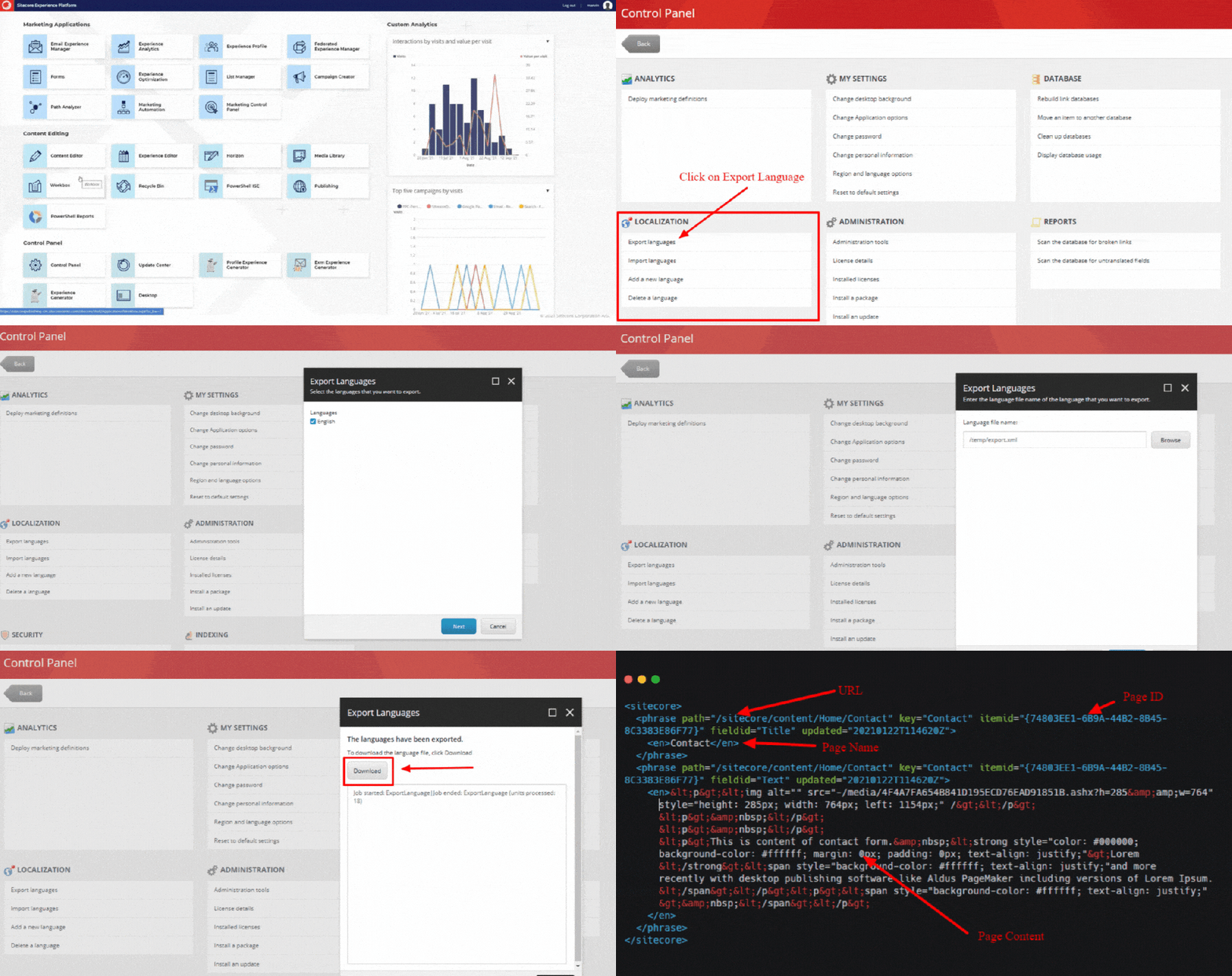
Now that you've exported your Sitecore content, you need to transform it for WordPress:
- Convert the Sitecore XML file to a WordPress-compatible format. This typically requires custom scripts to map Sitecore content structures to WordPress posts, pages, and custom post types.
- Use WordPress import tools like the built-in WordPress Importer or plugins like WP All Import to bring your content into WordPress.
- Map content types from Sitecore to their corresponding WordPress structures (e.g., Sitecore templates to WordPress posts or custom post types).
- Verify content hierarchy to ensure your page structure remains intact.
- Check formatting to confirm that text styling, links, and embedded media have transferred correctly.
Remember, complex Sitecore implementations often require custom migration scripts to properly convert the content. Consider reaching out to migration specialists (like us!) if you're dealing with a large or complex site.
4.2 Prepare media assets
Media assets are crucial elements of your website that contribute to user experience and SEO. Let's look at how to properly migrate and optimize them for your new WordPress site.
Here's how to prepare your media assets for migration:
A: Follow the first three steps from the above section on exporting your content XML in Sitecore. This lays the foundation for exporting both your textual and media content as you migrate from Sitecore to WordPress.
B: Select the Sitecore Media Library which you want to export. The same process applies here as you would use to export your configuration, aligning with the process to convert Sitecore website to WordPress site.
C: Refer to steps five and six from the above section on exporting your content XML in Sitecore. These steps guide you in storing your media assets, readying them for moving from Sitecore to WordPress.
D: Here is the Sitecore XML format database. Please see the below screenshot with all details of the item in XML format of Sitecore.
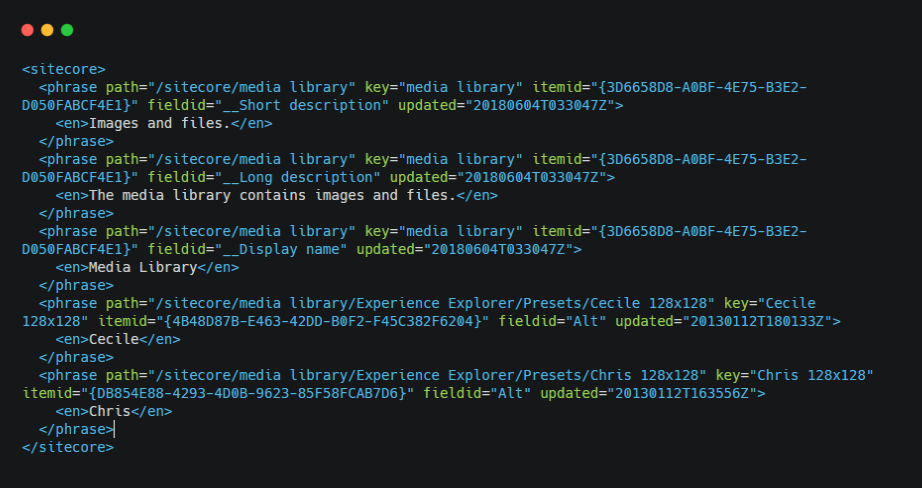
E: Build custom scripts to convert Sitecore .xml file to WordPress compatibility .xml file (contact us if you need any help). If you're looking to export Sitecore posts to WordPress and wish to self-launch a site with WordPress VIP, consult this resource.
4.3 Deployment checklist
The deployment phase is critical to ensure nothing falls through the cracks. Here's a comprehensive checklist to guide you through this process.
Important Considerations Before Final Deployment
- Prepare Your Sitemap: Finalize your website structure. Is there anything you want to change in the sitemap? Now is the time to add new pages or remove old ones.
- Prepare Your Integrations List: Identify which Sitecore integrations need to be migrated to WordPress and which new WordPress-specific integrations you want to implement. WordPress offers specialized, cost-effective marketing solutions that often outperform Sitecore's built-in MarTech stack, giving you the flexibility to scale as your enterprise grows.
- Plan the Timeline: Choose a low-traffic period for your migration, perhaps a weekend when your team is out of office. This minimizes disruption and gives you breathing room to address any issues.
- Implement Content Freeze: Establish a date when your editorial team should stop updating content on your Sitecore site. This prevents losing new content during migration. Make sure all stakeholders are aware of this freeze period.
- DNS Switching: Prepare to point your domain to your new WordPress hosting provider. If you're using a managed solution like WordPress VIP, they can help manage your DNS. It's advisable to switch nameservers at least a week before launch to allow for propagation.
- Caching Strategy: Plan your WordPress caching implementation to ensure optimal site performance. Consider plugins like W3 Total Cache, WP Super Cache, or managed hosting solutions that include caching.
- Set Up 301 Redirects: Create a comprehensive redirect map from your old Sitecore URLs to the new WordPress URL structure to preserve SEO value and user experience.
- SSL Certificate Implementation: Ensure your SSL certificate is properly installed on the new WordPress site.
Prepping for launch day?
Here’s a comprehensive Deployment Checklist we’ve prepared to guide you through the final stages of your Sitecore to WordPress migration. This checklist ensures a smooth transition by covering everything from pre-deployment preparations, technical checks, SEO preservation, security measures, and post-launch monitoring.
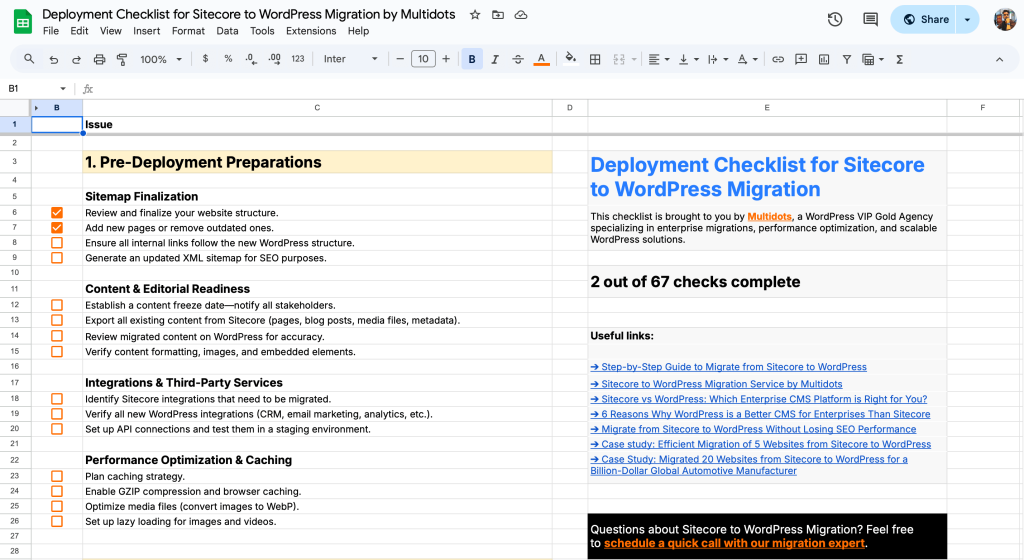
You can use this checklist as a step-by-step reference to ensure nothing is overlooked during deployment—minimizing risks, preserving site performance, and maintaining SEO integrity. Whether you’re handling the migration internally or working with a development team, this resource will help streamline the process and set your new WordPress site up for success.
4.4 Testing new website
Thorough testing is essential before taking your new WordPress site live. Here's what you should test and how to do it effectively.
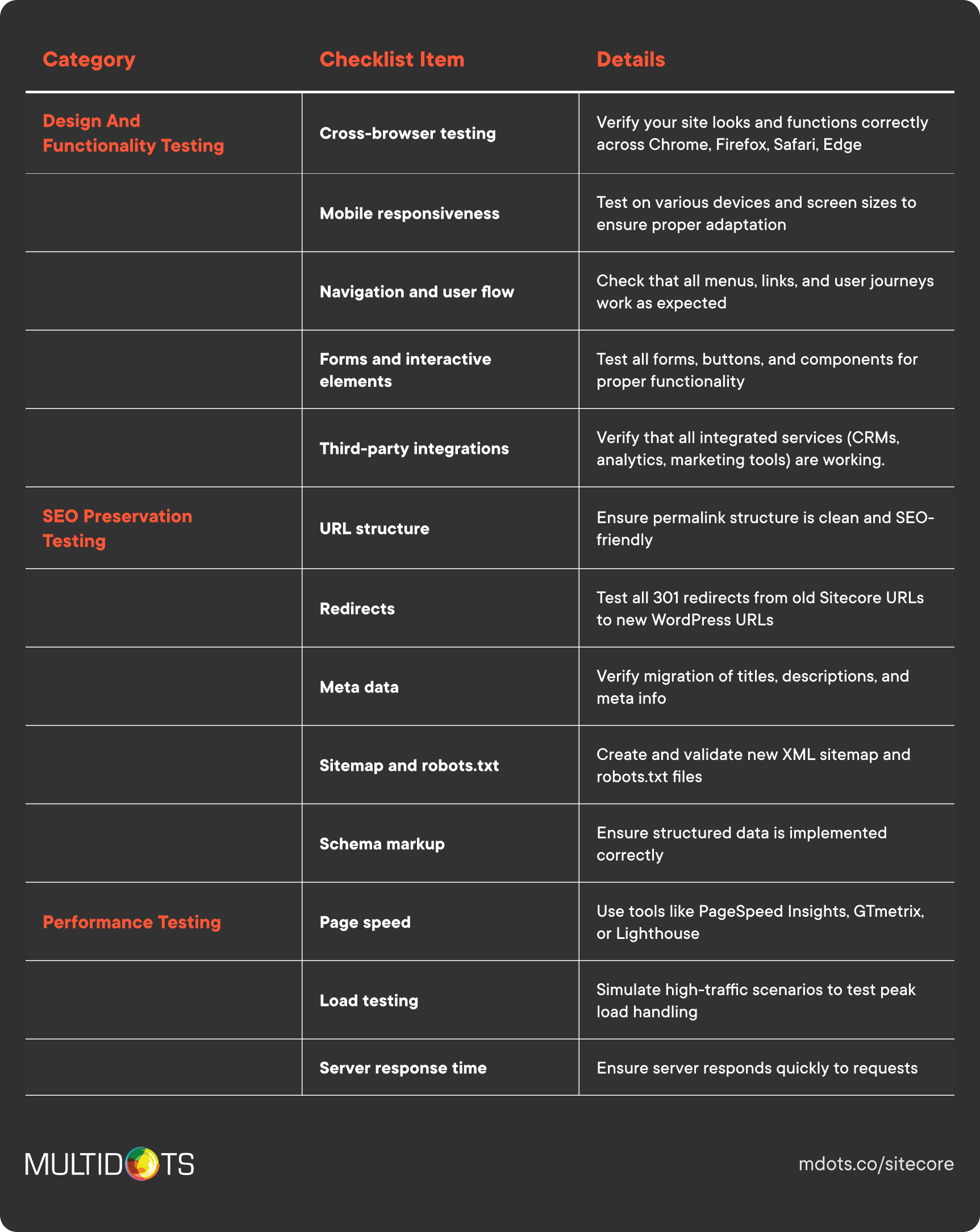
Tools like BrowserStack allow you to test your site across multiple devices and browsers from a single dashboard, while GTmetrix provides detailed performance insights and recommendations for improvement.
After launch, monitor your site's performance, traffic, and search rankings closely for at least 30 days to catch and address any issues quickly.
With these comprehensive steps completed, your migration from Sitecore to WordPress should be a success! Remember that post-launch optimization is an ongoing process, so continue to refine and improve your site based on user feedback and performance data.
Need expert assistance with your Sitecore to WordPress migration? Contact our team for personalized support throughout your journey.
STEP 5: TRAIN YOUR TEAM
Alright, you've made it through the migration process! Your shiny new WordPress site is up and running. But wait—we're not quite done yet. If your team has been working with Sitecore all this time, they're now facing a brand-new CMS. And while WordPress is famously user-friendly, there's still a learning curve.
Let's make sure your team feels confident and comfortable with their new digital workspace.
5.1 Learn WordPress basics
WordPress is known for its intuitive interface, but that doesn't mean your team will instantly master it. The good news? There are resources designed specifically for different skill levels.
WordPress offers a structured learning approach based on your team members' roles and existing knowledge:
- Beginner WordPress User courses cover the fundamentals of navigating the dashboard, creating basic content, and understanding the WordPress ecosystem. Perfect for team members who are completely new to WordPress.
- Intermediate WordPress User training builds on these basics, diving into more complex content creation, media management, and basic customization. This is ideal for users who understand the basics but need to learn how to leverage WordPress's flexibility.
- Advanced WordPress User materials explore in-depth customization, troubleshooting, and advanced content techniques. This level is great for your power users who'll be pushing WordPress to its limits.
Beyond these core skill levels, WordPress also offers specialized learning paths. For instance, the Designer Learning Path is perfect for team members who'll be customizing block designs and templates—a crucial skill for maintaining your brand's visual identity after migration.
5.2 Guides on updating and publishing content
Your content team needs specific, actionable guidance on their day-to-day tasks. Generic learning materials are helpful, but task-specific resources make the transition smoother.
Create how-to videos for everyday tasks
Short, focused video tutorials can dramatically speed up learning. Consider creating screen recordings that show exactly how to:
- Publish a new blog post using the WordPress block editor
- Update existing pages without disrupting the design
- Add and optimize images for the web
- Manage categories and tags for content organization
- Set up redirects when content moves or changes
These videos don't need Hollywood production values—simple screen recordings with clear narration are incredibly effective. Store them in a central location where team members can easily reference them whenever they need a refresher.
Add PDFs or one-pagers on workflows
While videos are excellent learning tools, sometimes your team needs quick reference materials they can glance at during their workflow. Develop concise PDF guides or one-page reference sheets for common procedures:
- Editorial workflow checklists (from draft to publication)
- Content optimization quick guide
- Image size and format standards
- Decision trees for content categorization
- Common troubleshooting solutions
These resources can be printed and kept at workstations or saved on desktops for immediate access when needed.
5.3 Get professional training from an agency
While self-service learning resources are valuable, there's enormous benefit in bringing in professional trainers who understand both Sitecore and WordPress deeply. They can bridge the knowledge gap more effectively than generic materials.
Typical training offerings
Professional WordPress training typically includes:
- Customized workshops tailored to your specific WordPress implementation
- Role-based training sessions for different team members (editors, administrators, marketers)
- Hands-on exercises using your actual content and website structure
- Advanced feature training focused on your specific business needs
- Q&A sessions to address your team's specific concerns and questions
- Follow-up support to handle questions that arise as teams start using the system
Benefits of professional training
Professional training delivers several advantages over self-guided learning:
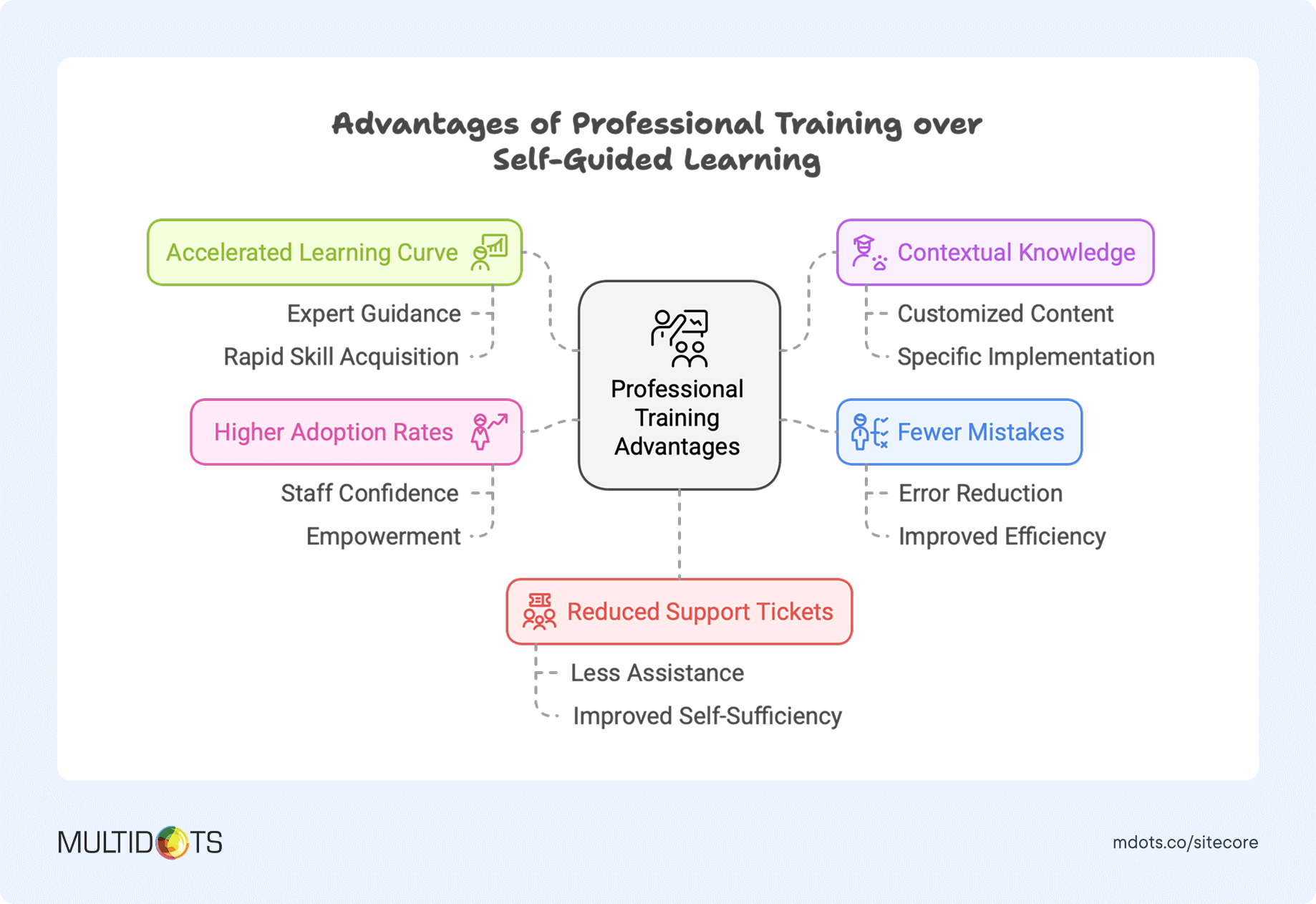
Multidots training services
At Multidots, we've developed a comprehensive WordPress training program specifically designed for teams transitioning from Sitecore. Our training isn't just about WordPress basics—it's about helping your team understand the differences between platforms and leveraging WordPress's strengths.
Our training packages include:
- Interactive live sessions with WordPress specialists
- Custom training materials based on your specific WordPress implementation
- Hands-on workshops using your actual website
- Personalized learning paths for different team roles
- 30-day post-training support to address questions as they arise
- Advanced sessions on WordPress SEO, performance optimization, and security
Whether you choose to migrate Sitecore to WordPress manually or with professional assistance, training is key to harnessing the full potential of your new WordPress site.
STEP 6: MAINTENANCE AND MONITORING
Congratulations! Your migration is complete, and your team is trained on the new WordPress platform. Now comes an equally important phase: ensuring your website stays secure, up-to-date, and performs optimally over time.
6.1 Regular plugin and WP updates
Follow these guidelines to keep your WordPress site secure and functioning smoothly:
- Create a staging environment for testing updates before applying them to your live site
- Schedule regular update checks at least once a month (weekly is even better)
- Document your plugin list and know what each one does to avoid redundancy
- Back up your site before performing any updates
- Update in this order: plugins first, themes second, WordPress core last
- Monitor your site after updates to catch any issues quickly
- Read changelog notes to understand what each update contains and whether it might impact your site's functionality
6.2 Continuous monitoring
Monitoring your WordPress site isn't just about knowing when it's down—it's about proactively identifying issues before they impact users.
Implement these monitoring approaches to maintain peak performance:
- Uptime monitoring: Services like Pingdom, UptimeRobot, or ManageWP constantly check if your site is accessible. They'll alert you immediately if your site goes down, often before your customers notice.
- Performance monitoring: Tools like New Relic, Google PageSpeed Insights, or GTmetrix help track your site's speed and performance over time, allowing you to identify when things start to slow down.
- Security monitoring: Solutions like Sucuri, Wordfence, or iThemes Security provide real-time security monitoring, alerting you to potential threats or suspicious activities.
- Error logging: Configure WordPress debug logging to catch PHP errors and warnings that might indicate underlying problems.
- Analytics monitoring: Regular review of your Google Analytics or similar platform helps identify unusual patterns in traffic that might indicate problems.
- Database monitoring: Tools like Query Monitor help identify database issues or inefficient queries that could be slowing down your site.
For enterprise WordPress sites, we recommend implementing a comprehensive monitoring strategy that combines automated tools with regular manual checks. Set up a monitoring dashboard that gives you a unified view of all your critical metrics in one place.
6.3 Support and maintenance contracts
Even with the best in-house team, having professional WordPress support provides peace of mind and access to specialized expertise when you need it most.
What to look for in maintenance contracts
When evaluating WordPress maintenance services, consider these key factors:
- Update frequency: How often will they check and apply updates?
- Response time guarantees: What's their SLA for emergency issues vs. standard requests?
- Security audits: Do they perform regular security scans and audits?
- Backup frequency and storage: How often are backups created, and where are they stored?
- Performance optimization: Do they proactively monitor and improve site performance?
- Development hours: Are development hours for small tweaks and fixes included?
- Reporting: Will you receive regular reports on work performed and site health?
- Support channels: How can you reach them (phone, email, ticket system), and what are their hours?
- Proactive vs. reactive support: Do they just fix problems, or do they actively look for ways to improve your site?
Multidots maintenance and support offerings
At Multidots, we offer three flexible approaches to website maintenance that cater to different needs:
- Support Packages: Our super flexible support packages range from 50 to 500 hours and cover a wide range of services, including bug fixes, new features, performance optimization, and expert consulting. You have six months to use your allocated hours, giving you maximum flexibility to address your maintenance needs as they arise.
- Hire Dedicated Developers: For more complex ongoing maintenance needs, our monthly developer plans allow you to hire a dedicated team (or just one developer) with the flexibility to scale up or down as needed. We offer four different skill levels to match your project's requirements and budget, ensuring you get exactly the expertise you need.
- Managed Website Maintenance: Our Managed Maintenance Services provide comprehensive care for your WordPress site, ensuring it stays secure, optimized, and performing at its peak. We handle everything from updates to uptime monitoring, allowing you to focus on your core business. This service includes proactive support, quality-assured updates, and expert consultancy to keep your digital presence running smoothly.
Clients who subscribe to our maintenance services experience 99.9% uptime, fewer security incidents, and significantly improved site performance compared to self-maintained WordPress sites.
Whether you need ad-hoc support, dedicated developers, or comprehensive managed maintenance, Multidots has a solution designed to keep your WordPress site running at its best.
Looking for more personalized guidance on your website maintenance needs? Schedule a free website maintenance consultation with our experts today.
ADDITIONAL RESOURCES
Looking for quick answers or want to take this guide with you? We've got you covered with these helpful resources.
FAQs: Common questions related to Sitecore to WordPress Migration
-
Yes, WordPress supports integrations with platforms like Salesforce, HubSpot, and Azure via plugins, APIs, or custom development, making it a flexible choice.
-
WordPress’s REST API and support for GraphQL enable robust, API-first setups similar to Sitecore for dynamic and decoupled applications.
-
Managed hosting solutions like WordPress VIP, WP Engine, or Kinsta are recommended for enterprise-grade performance, security, and support.
-
Your current designs and UX flow can be replicated or improved in WordPress using custom themes, Gutenberg editor and advanced page builders.
-
The migration typically takes 4-8 weeks depending on complexity, with downtime minimized through staging environments and careful execution.
-
WordPress ensures security with regular updates, managed hosting firewalls, and plugins like Wordfence for DDoS protection and vulnerability scans.
-
Caching plugins, image optimization tools, and enterprise hosting ensure fast loading times. Regular performance audits further enhance speed.
-
WordPress integrates seamlessly with CDNs like Cloudflare or Akamai to handle global traffic efficiently.
-
WordPress eliminates licensing fees, with expenses focused on hosting, premium plugins, and development. Costs are typically 40-60% lower than Sitecore. Find out exact ROI on migrating to WordPress.
-
Hosting and plugins scale with your business needs, and managed hosting can handle surges without significant cost increases.
-
WordPress scales effortlessly with global traffic, supports AI integrations through APIs and plugins [check out guide] and adapts to new features or technologies as your business grows.
Download our in-depth guide as a PDF and move from Sitecore to WordPress with confidence
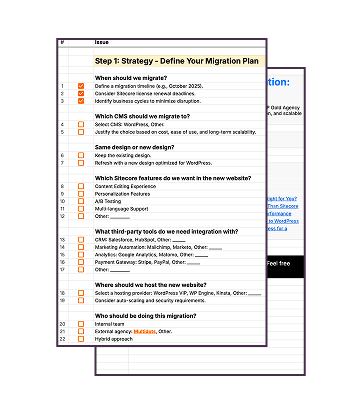
Grab our downloadable checklist to map out your Sitecore to WordPress transition
Find Out How Much You Can Save (Yearly) by Switching Your Website to WordPress?
Feel free to schedule a quick call with our migration expert.
Contact Us